

How to Hide Photos from Memories and Featured Photos on iPhone
Memories can be lovely, until a photo you’d rather not see, or not have others see, turns up as a slideshow or on your Home Screen. Here is how to keep a single photo, a person, a day, or everything out of the spotlight.
Your iPhone looks through your library and builds Memories (short movies set to music), featured photos and Photos widget picks. Apple says this uses on-device intelligence to find trips, people, pets and more. It’s automatic, which is the point, and also the problem: it doesn’t know which photos are painful, private or simply not for a shared screen.
The good news is that you have several levels of control, from a single photo to switching the whole thing off. The steps below follow Apple’s current iPhone User Guide; menu names can shift slightly between iOS versions.
For photos that never resurface: Vaultmira
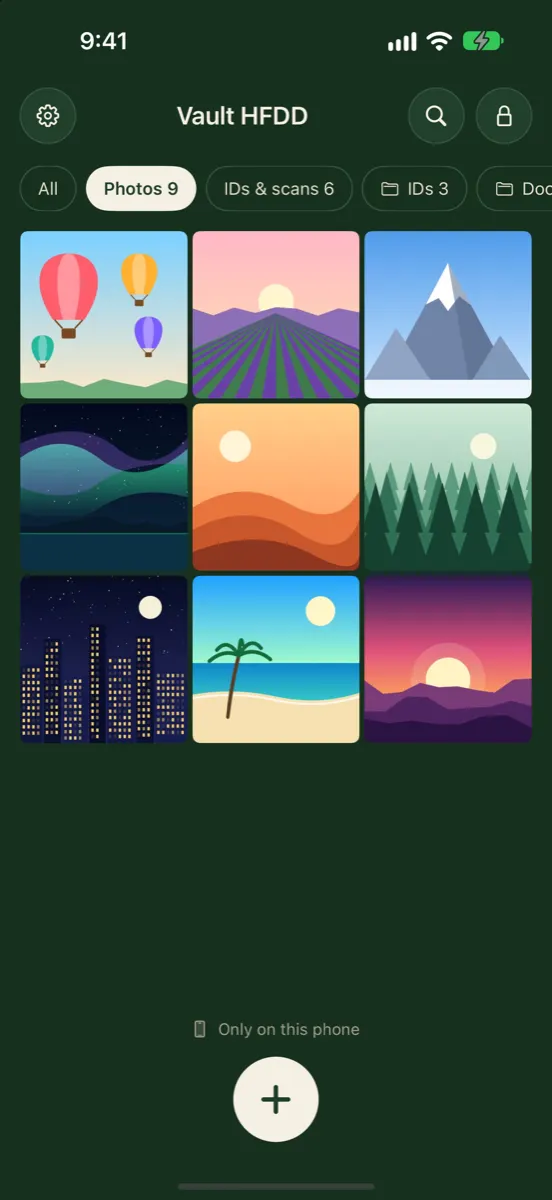
Photos inside Vaultmira aren’t part of your Photos library at all, so Memories, featured photos, the widget and Photos search can’t pick them up. They are sealed with AES-256-GCM and open only with the shape you draw. Get Vaultmira on the App Store.
How it looks in Vaultmira
How Your iPhone Chooses
Apple’s Photos privacy page says Photos uses on-device machine learning to power Memories, featured photos and more. That analysis includes scene classification, recognising people and pets, judging photo quality and classifying audio. It also uses information already on your iPhone, such as:
- Photos you have edited or shared with other people.
- People you often message in Messages.
- Relationships you set in Contacts.
- Home and Work locations set in Contacts or Maps, and where you took photos.
- Important dates in Calendar and Contacts.
The same signals that make a birthday memory feel personal can also pick a photo of an ex you still message, or a day you would rather forget. The analysis happens on your device, so it is private from Apple, but the results are shown on your screen.
Choose the Right Fix
| You want to… | Best option | Still in your library? |
|---|---|---|
| Keep one photo out of everything | Hide it | Yes, in the Hidden collection |
| Take a photo out of one memory movie | Edit that memory | Yes |
| See less of a person | Don’t Feature a Person | Yes |
| Stop holiday memories | Turn off Show Holiday Events | Yes |
| Stop all memories and featured photos | Turn off Show Featured Content | Yes |
| Make sure it can never resurface | Move it into an encrypted vault | No |
Option 1: Hide a Single Photo
- Open Photos and touch and hold the photo or video.
- Tap Hide, then confirm.
Apple says hidden items move to the Hidden collection and don’t appear anywhere else in Photos, such as the Library, other albums or the Photos widget on your Home Screen. The Hidden collection is locked by default with Face ID, Touch ID or your passcode. With iCloud Photos on, the photo is hidden on all your devices.
Hiding changes where the photo shows up, not who can open it. Anyone who knows your iPhone passcode can still open the Hidden collection. And if the photo is in an iCloud Shared Library, Apple says hiding moves it to the Hidden album for every participant.
Option 2: Remove a Photo from One Memory
- In Photos, tap Collections, then tap Memories (or swipe through the Memories row).
- Play the memory, then tap the screen to show the controls.
- Open the photo picker for the memory and deselect the photo you want to remove.
- Confirm to save the change.
To get rid of a memory entirely, touch and hold it in the Memories list and tap Delete Memory. Deleting a memory doesn’t delete the photos in it.
Option 3: Feature a Person Less, or Never
- Open a photo of the person in Photos.
- Tap the More button, then Don’t Feature a Person. If there are several people in the photo, tap the right one, then Next.
- Choose Feature This Person Less or Never Feature This Person, then tap Confirm.
This is the kind option after a breakup or a loss: the photos stay in your library, but Photos stops building slideshows around that person. To undo it later, tap Collections, tap your account in the top-right corner, then Reset People & Pets Suggestions.
You can also mark a place or a day from an existing memory to be featured less often, from that memory’s options.
Option 4: Turn Off Holidays or All Featured Content
- Open Photos and tap Collections.
- Tap your account in the top-right corner.
- Turn off Show Featured Content to stop Photos from making featured photos and memories automatically.
- Or turn off Show Holiday Events to stop memories about holidays in your home country or region.
Apple says turning off featured content also affects the Photos widget on your Home Screen. It’s the most complete switch: no surprise slideshows, no featured picks.
A Gentle Plan After a Breakup or a Loss
When a slideshow catches you off guard, it helps to have a plan, so you don’t delete something in a hurry that you may want one day. This order keeps every photo, while taking them out of the spotlight:
- Feature the person less, or never. This stops new memories built around them.
- Delete memories that hurt. Touch and hold a memory and tap Delete Memory; the photos stay in your library.
- Hide or move the photos you can’t face right now. Hide them, or move them into a vault where they won’t be suggested at all.
- Pause featured content for a while. Turn off Show Featured Content, then turn it back on when you’re ready.
- Come back later. When it feels right, Reset People & Pets Suggestions brings the person back into Memories.
If you share an iCloud Shared Photo Library with family, remember that hiding a photo there hides it for everyone in the library. Moving a photo into your personal library, or into a vault, keeps the decision yours alone.
Who Can See Your Memories
People near your phone
A memory or widget photo appears without you asking. A friend looking over your shoulder, a colleague when you open your phone in a meeting, or a child borrowing it for a game sees whatever your iPhone chose that day.
People in your Shared Library
Apple says content in an iCloud Shared Photo Library is added to everyone’s memories, featured photos and Photos widget. A photo you add to the shared library can turn up on the other participants’ screens in ways you didn’t choose.
People you share a memory with
Apple lets you share a memory movie with AirDrop, Messages or Mail, or play it on a nearby screen with AirPlay. Before sharing or casting one to a TV, play it through yourself: it may include photos you have forgotten.
Your other devices
With iCloud Photos, your library is the same on your iPad and Mac. Apple also says that when you name someone in the People & Pets album, that name and face appear in Photos on all your iCloud-enabled devices.
What These Settings Don’t Do
- They don’t hide photos from your library. Anyone scrolling your Library still sees them, unless you hid them.
- They don’t change iCloud. The photos still sync and back up as before. See Are hidden photos saved to iCloud?
- They don’t protect against someone with your passcode. The Hidden collection opens with it.
- They don’t reach other people’s phones. If you shared a photo in a Shared Album or sent it to someone, their Photos app makes its own choices.
For Photos That Should Never Resurface
Some photos you want to keep, but never want to bump into by accident: medical photos, documents, an ex, or pictures that belong to a private part of your life. Settings can lower the odds. Moving the photo out of your library takes it out of the running altogether.
In Vaultmira, tap + and choose From Photos. After the photos are added, Vaultmira offers to Remove from Photos; iOS shows its own confirmation. The originals then sit in Photos’ Recently Deleted for 30 days unless you empty it there.
- Out of Memories, widget and search. Vault photos aren’t in your library, so Photos has nothing to suggest.
- Never in the gallery to begin with. Photos and videos taken with Vaultmira’s Secure Camera go straight into the vault.
- Showing just one. Open a photo, tap the More button and choose Show one photo: swiping is off, there are no buttons, and tapping Done locks the vault.
- Still backed up. The free encrypted iCloud backup keeps sealed copies in your own iCloud.
The free plan holds unlimited vaults with up to 100 photos and 10 videos in each; Vaultmira Pro removes those limits.
Settings and vaults work well together: use the settings for everyday tidiness, and the vault for the handful of photos that must never surprise you or anyone looking over your shoulder.
Frequently Asked Questions
Do hidden photos show up in Memories?
Apple says hidden photos don’t appear anywhere else in Photos, including the Photos widget. They stay only in the Hidden collection.
How do I stop a certain person appearing in Memories?
Open a photo of them, tap the More button, tap Don’t Feature a Person, and choose Feature This Person Less or Never Feature This Person.
Will turning off Show Featured Content delete my memories?
It stops Photos from automatically making featured photos and memories. Your photos themselves aren’t deleted.
Why did an old photo show up on my Home Screen?
The Photos widget shows featured photos. Hide that photo, or turn off Show Featured Content to stop featured picks altogether.
Can Vaultmira photos appear in Memories?
No. They are stored sealed inside Vaultmira, not in your Photos library, so Memories and the widget can’t see them.
How does my iPhone decide what goes into Memories?
Apple says Photos uses on-device analysis of scenes, people, pets, photo quality and audio, plus information on your iPhone such as people you message, important dates and places you take photos.
Can other people see my Memories?
Anyone who sees your screen can see memories and widget photos. Shared Library photos also appear in other participants’ memories, and any memory you share is seen by the people you send it to.
Can featured photos appear on my Lock Screen?
Yes, if you set up a Photo Shuffle wallpaper using featured photos. Choose a specific album or hand-picked photos instead if you want control.
Does deleting a memory delete the photos?
No. It removes the memory only. The photos stay in your library.
Related reading:
- Does Deleting a Vault App Delete Your Photos?
- Do Photo Vault Apps Back Up to iCloud?
- How to Move Photos Out of a Vault App
Keep it private, for real
Hidden is not the same as locked. Vaultmira seals your photos and files on your iPhone behind a shape only you know.
Download Vaultmira Free