

How to Hide Photos on iPhone: 4 Ways and What Each One Really Hides
Hiding a photo can mean “keep it off my main screen” or “nobody but me can open it.” iPhone has good tools for the first. For the second you need something more. Here is how to do both.
Most people want to hide a photo for ordinary reasons: a passport scan, a medical letter, a surprise gift, a private moment, or simply a screenshot that should not pop up when you hand your phone to a friend.
iPhone gives you several ways to do it, and they are not all the same. Some move a photo out of your main Library. Others put a real lock on it. This guide walks through four methods, in order from quickest to strongest, and tells you plainly who can still see your photos with each one.
Best for photos only you can open: Vaultmira
The Hidden album moves a photo out of view; it does not give it a separate lock. Vaultmira seals each photo with AES-256-GCM using a key made from a shape only you draw, so knowing your iPhone passcode is not enough. Free for up to 100 photos and 10 videos per vault, with no account. Get Vaultmira on the App Store.
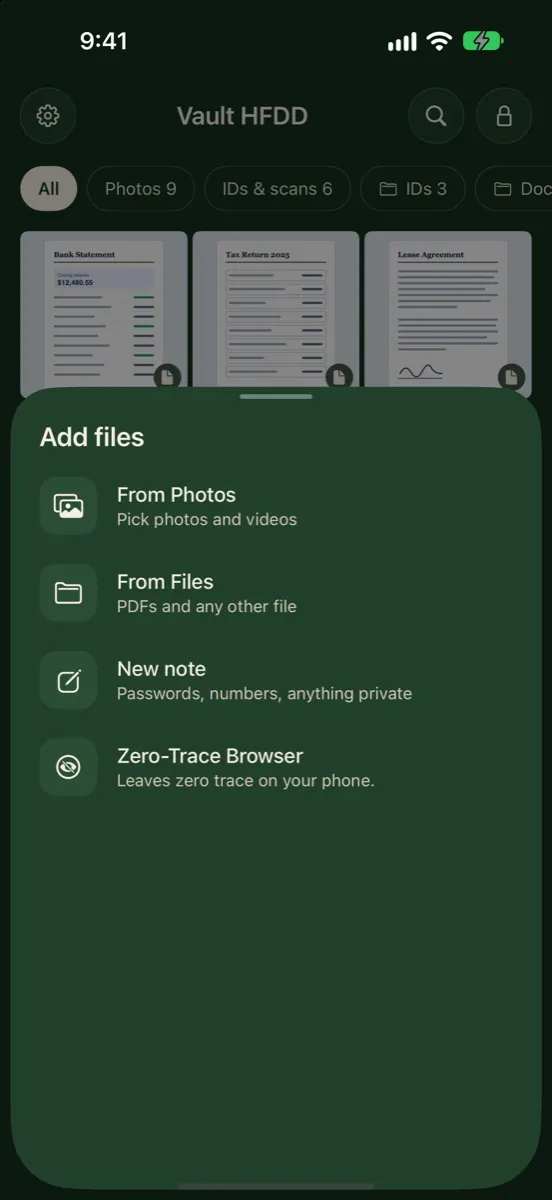
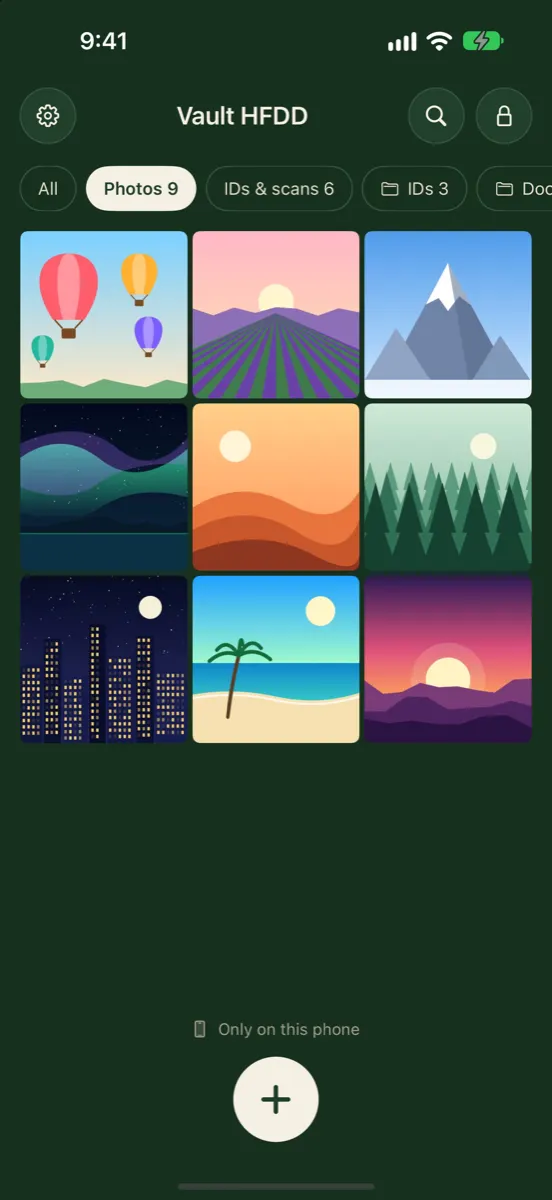
How it looks in Vaultmira
The Four Methods at a Glance
| Method | Takes | Keeps out | Does not keep out |
|---|---|---|---|
| Hidden album | Seconds | Someone scrolling your Library or widgets | Anyone who knows your passcode |
| Hidden album, removed from view | One setting | Someone who doesn’t know it exists | Anyone who knows where to switch it back on |
| Locked note in Notes | A minute | People without your notes password | Anyone with your passcode, if notes use the passcode |
| Encrypted vault app | A few minutes | People who know your passcode | Someone who learns your vault’s own key |
Method 1: Apple’s Hidden Album
Every iPhone has a Hidden album built into the Photos app. When you hide a photo or video, it leaves your Library, your other albums and the Photos widget on your Home Screen, according to Apple’s support page. Nothing is deleted. It simply waits in Hidden until you bring it back.
To hide one photo
- Open Photos.
- Touch and hold the photo or video you want to hide.
- Tap Hide, then confirm.
To hide several at once
- Open your Library or a collection and tap Select.
- Tap each photo you want to hide.
- Tap the menu button at the bottom, then tap Hide.
To find them again, open Photos, tap Collections, then Hidden under Utilities, and tap View Album. Since iOS 16, the Hidden album is locked by default and opens with Face ID, Touch ID or your passcode.
Hidden is a label on a photo inside your normal library. If you use iCloud Photos, Apple says a photo hidden on one device is hidden on your other devices too, so it travels wherever your library goes.
The lock on the album is your iPhone passcode. That works well against a curious friend. It does not help against a partner, parent or anyone else who already knows the code.
Method 2: Remove the Hidden Album From View
If you would rather nobody even sees an album called Hidden, you can switch it off. Go to Settings → Apps → Photos and turn off Show Hidden Album. Your hidden photos stay where they are; they just stop appearing anywhere in the Photos app until you turn the setting back on.
This is a small extra step, not a new lock. Anyone who knows the setting exists and has your unlocked phone can turn it back on in a few seconds. It is best for keeping a quick glance from turning into a question.
Method 3: A Locked Note
The Notes app can lock individual notes, and a note can hold pictures you add to it. Apple gives you two choices: lock notes with your iPhone passcode, or create a separate password only for Notes. For iCloud notes, both are protected with end-to-end encryption, according to Apple’s guide to locking notes.
- Use a separate notes password if the people around you know your iPhone passcode. Otherwise your passcode opens the note.
- Write the password down somewhere safe. Apple is clear that if you forget a separate notes password, it cannot help you get back into those notes.
- Remember the original. Adding a photo to a note does not remove it from your Photos library. Delete it there too.
Locked notes are a handy free option for a few documents. They are less comfortable for dozens of photos or for videos you want to browse like an album.
Method 4: An Encrypted Vault App
A vault app keeps photos inside its own storage, away from the Photos library, behind a lock that is separate from your iPhone passcode. The good ones encrypt every file, so the photos are unreadable without the vault’s key. Here is how it works in Vaultmira.
- Install Vaultmira from the App Store. There is no account or email to set up.
- Draw a shape on the 5×5 dot grid, using at least 6 dots and one turn. That shape is the key to your new vault. See Drawing Encryption.
- Save your backup phrase, the second key that brings the vault back if you ever forget the shape. See Backup Phrase.
- Tap the + button, then From Photos, and pick the photos and videos you want to protect.
- When Vaultmira says your items are safe, tap Remove from Photos. iOS asks you once to confirm.
- Finish in the Photos app: open Recently Deleted and delete those photos there too. Vaultmira reminds you of this last step.
Every photo, its small preview and the vault’s file list are encrypted on your iPhone before they are stored. Your vault opens only with your drawing or its backup phrase. Your iPhone passcode does not open it, and neither does Face ID.
For new pictures, skip the gallery entirely: Secure Camera takes photos and videos inside the vault, so there is no original to clean up.
The Step Almost Everyone Forgets
When you delete a photo in Photos, it is not gone yet. It moves to Recently Deleted, where Apple keeps it for 30 days before removing it for good. During those 30 days it can be recovered. If you use iCloud Photos, deletion follows across your devices as well.
So whichever method you use to move a photo somewhere private, finish the job: open Photos, tap Collections, then Recently Deleted, unlock it, select the photos and delete them.
A photo you sent in a chat still sits in that conversation. A photo in a shared album is still in that album. A photo backed up by another app, such as a cloud storage service, may still be there. Hiding or vaulting the copy on your iPhone does not reach those.
What No Hiding Method Can Do
Even the strongest option protects only the copy it holds. It is worth being clear about the rest:
- Copies elsewhere. A photo you sent in a chat, added to a shared album or saved to a computer still lives there. Hiding the copy on your phone does not reach those.
- An open vault in someone else’s hands. Once a vault is open, whoever holds the phone can see it. Vaultmira locks the moment the app goes to the background, and there is a Lock now button for handing the phone over.
- Another camera. Vaultmira makes screenshots and screen recordings of the app come out black, but nothing stops someone photographing the screen with a second phone.
- Pressure on you. No app is a safety plan. If you are in danger, an organisation such as the National Domestic Violence Hotline can help you plan.
Which Method Should You Use?
- You just want a cleaner camera roll. The Hidden album is fast, free and built in.
- Friends sometimes scroll your photos. Hidden album, plus Show Hidden Album turned off.
- A handful of documents. A locked note with a separate notes password.
- Someone close to you knows your passcode. An encrypted vault with its own key. Read Your partner knows your iPhone passcode.
- IDs, medical records and other papers. A vault, ideally with an encrypted backup. See Photos of your passport and ID.
Still deciding between the built-in option and an app? Our side-by-side page, Hidden album vs a photo vault app, goes deeper, and How to hide videos on iPhone covers the extra points that apply to video.
Frequently Asked Questions
Does hiding a photo on iPhone delete it?
No. Hidden photos stay in your library, in the Hidden album, and you can unhide them at any time. Only deleting a photo moves it to Recently Deleted.
Can someone see my hidden photos if they know my passcode?
Yes. The Hidden album unlocks with Face ID, Touch ID or your iPhone passcode, so anyone who knows the passcode can open it. For photos that need a separate lock, use a locked note with its own password or an encrypted vault app.
Are hidden photos hidden on my iPad and Mac too?
If you use iCloud Photos, yes. Apple says photos hidden on one device are hidden on your other devices too. They are still part of your iCloud photo library.
Why do my photos still appear after I moved them to a vault?
Importing into a vault makes a protected copy; the original stays in Photos until you delete it. In Vaultmira, tap Remove from Photos after importing, then empty those items from Recently Deleted in the Photos app.
Does Vaultmira need access to my whole photo library?
No. You pick the photos you want to add, and Vaultmira receives only those. It asks for Photos access only if you choose to remove the originals, because iOS needs that permission to delete them.
Can other apps see my Hidden album?
Apple says an app you give Full Access to Photos can see hidden photos and videos, even when the Hidden album is locked. Check Settings → Privacy & Security → Photos.
Is locking the Photos app enough?
It adds a step, but the lock uses your phone’s Face ID, Touch ID or passcode. Anyone who has those can still open it.
Are calculator vault apps safe?
Some are well built and some are not; the disguise says nothing about the encryption behind it. Check what the maker says about how files are protected.
Related reading:
Keep it private, for real
Hidden is not the same as locked. Vaultmira seals your photos and files on your iPhone behind a shape only you know.
Download Vaultmira Free