

How to Hide Videos on iPhone: Built-in Options and Encrypted Storage
Videos hide the same way photos do, but they are bigger, they take longer to move, and they leave larger copies behind. Here is how to hide them properly, and when to lock them instead.
A video tends to carry more than a photo: voices, faces, places, minutes of context. That is why a private video is often the thing people most want to keep away from a borrowed phone, a shared iPad or a synced library.
The good news is that iPhone already lets you hide videos in a couple of taps. The catch is that hiding is not the same as locking. This guide shows the built-in way first, then the encrypted way, and the small habits that keep stray copies from undoing your work.
Best for videos only you can open: Vaultmira
Vaultmira seals each video on your iPhone with AES-256-GCM, in pieces, using a key made from a shape you draw. Secure Camera records straight into the vault, so the video never lands in your gallery. Free for up to 10 videos per vault; Vaultmira Pro removes the limit.
How it looks in Vaultmira
Hide a Video With the Hidden Album
The Photos app treats videos just like photos. When you hide one, it moves to the Hidden collection and no longer shows in your Library or other albums. You can’t view it anywhere else, as Apple’s iPhone User Guide puts it.
- Open Photos.
- Touch and hold the video, or open it and use the menu button.
- Tap Hide, then confirm.
To hide many videos at once, tap Select, pick them, tap the menu button and choose Hide. To see them later, go to Collections, tap Hidden under Utilities, then View Album. The Hidden and Recently Deleted collections are locked by default and open with Face ID, Touch ID or your passcode.
Want the Hidden collection out of sight too? Go to Settings → Apps → Photos and turn off Show Hidden Album.
A hidden video is still part of your photo library. With iCloud Photos on, it is hidden on your other devices, but it is still there on each of them. And the lock is your device passcode, so anyone who knows it can open Hidden.
Lock a Video in an Encrypted Vault
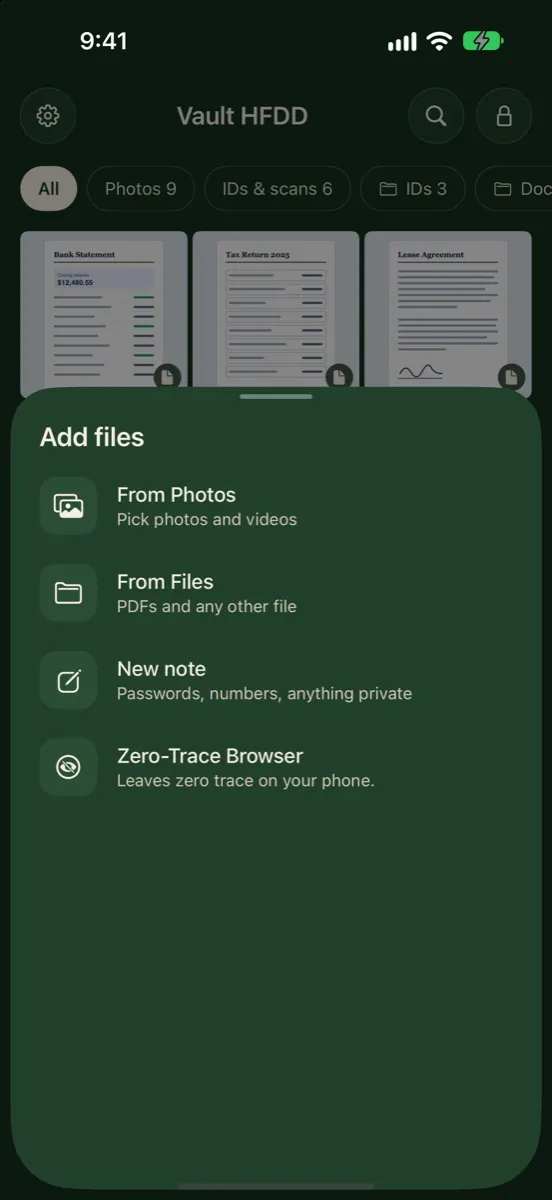
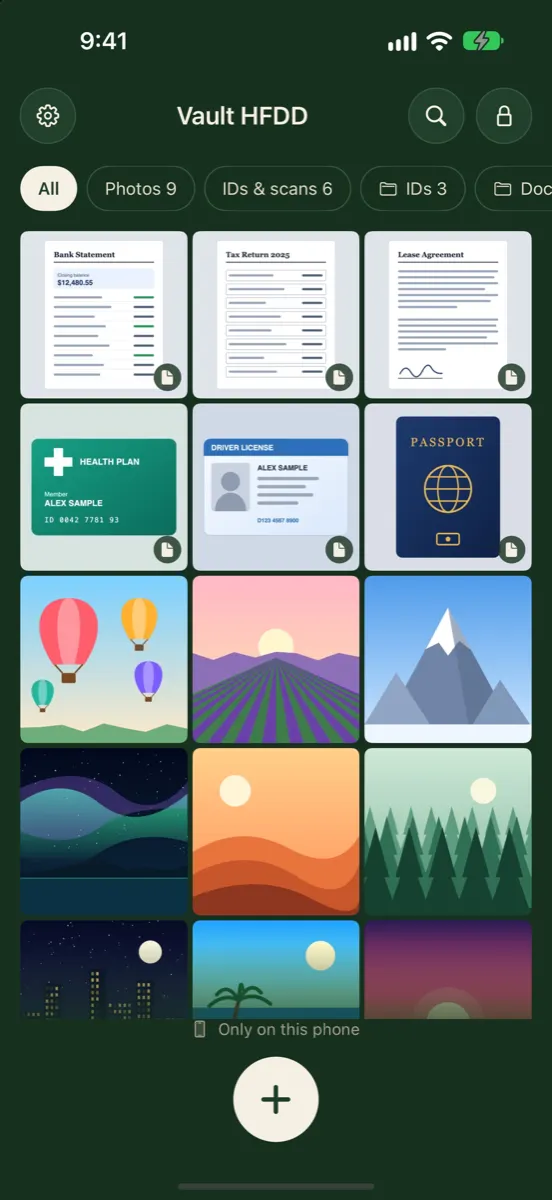
A vault app moves the video out of your photo library and into its own storage, behind a key that is not your iPhone passcode. In Vaultmira it looks like this:
- Draw your shape to open a vault. Each shape on the 5×5 grid opens its own vault.
- Tap the + button and choose From Photos, then pick your videos.
- Wait for the import to finish. Videos are big, so a long one can take a moment.
- Tap Remove from Photos when Vaultmira offers it, and confirm in the box iOS shows.
- In the Photos app, open Recently Deleted and delete those videos there too.
Videos from other places work too. From Files brings in a video you saved from email, a messaging app or a computer. If you downloaded a video into Files, delete that copy afterwards as well.
How Vaultmira Protects a Video
A long video is too big to encrypt in one go, so Vaultmira seals it in 4 MB pieces, each with its own AES-256-GCM seal. Every piece carries its number and a “last piece” mark inside the seal, so a piece that is missing, swapped or cut short fails to open instead of playing as a damaged clip.
Videos always keep their full quality. The Smaller photo-quality setting applies to photos only. The small preview you see in the grid is sealed the same way as the video itself, and so is the vault’s file list, so even the names of your videos are not readable on disk.
We would rather be clear about one detail: iOS hands a finished recording to an app as a file. Vaultmira copies it into a private temporary folder protected by iOS Data Protection, seals it, and then deletes the temporary copy. If the vault locks before saving finishes, that copy is thrown away, and anything left over from an interrupted save is cleared the next time the app starts.
Record Straight Into the Vault
The cleanest private video is one that was never in your gallery. With Secure Camera, open a vault, tap + and choose Take a photo or video. The small print under that option says what it does: never saved to your gallery.
- Apple’s own camera screen. Photo or video, front or back lens, flash: all the usual controls.
- Keep or retake. Retake throws the clip away; Use sends it into the open vault.
- Microphone only while recording. It is there for the sound on your video, nothing else.
- No photo-library permission needed. The camera works without it.
Storage and Backup: The Video-Sized Questions
Videos fill phones and cloud storage quickly, so it is worth knowing where yours go.
- Photos and iCloud Photos. A hidden video still counts toward your iCloud storage if you use iCloud Photos, because it is still in the library.
- Vaultmira on your iPhone. Videos in a vault use your phone’s storage. Vault Settings shows how much each vault uses.
- Vaultmira backup. Encrypted iCloud Backup is free and on by default. It uploads already-sealed files to your own private iCloud, and by default it waits for Wi-Fi, which suits large videos. You can allow mobile data in App Settings.
- Backup versions share files. Keeping 3 versions (the default) does not store three copies of every video; versions share the same sealed files.
Free Plan or Pro for Videos?
The free plan keeps 10 videos and 100 photos in each vault, and you can make as many vaults as you like. If you keep more videos than that in one place, Vaultmira Pro removes the limits and adds features such as the panic drawing, sharing and opening your vaults on iPad. Pro is $1.99 a week, $3.99 a month, $14.99 a year with 7 days free, or $29.99 once (US prices, as of November 2026).
Sharing a Private Video Without Losing Control
Sending a video in a chat leaves a copy you can’t take back. With Secure Sharing, a Vaultmira Pro feature, you share a whole vault or one folder with a one-time phrase. You pick how long it lasts (1 day, 1 week, 1 month or never), and “let them save copies out of the app” is off unless you turn it on. You can stop a share at any time. The other person doesn’t need Pro to open it, and what they receive is a snapshot of the folder at the moment you shared it.
Habits That Keep Videos Private
- Empty Recently Deleted. Deleted videos wait there for 30 days.
- Check your chats. A video you sent or received in a messaging app still sits in that conversation.
- Check other cloud apps. Some apps back up your camera roll on their own.
- Screen recordings. If you record your screen while a video plays elsewhere, that recording is a new copy. Inside Vaultmira, screenshots and screen recordings come out black.
For the photo side of the same job, see How to hide photos on iPhone.
Frequently Asked Questions
Can I hide a video on iPhone without an app?
Yes. In Photos, touch and hold the video and tap Hide. It moves to the Hidden collection, which is locked by default and opens with Face ID, Touch ID or your passcode.
Do hidden videos still use iCloud storage?
If you use iCloud Photos, yes. Hiding a video only changes where it shows in Photos; it is still part of your library and your storage.
Does Vaultmira reduce video quality?
No. Videos and files always keep full quality. Only photos have an optional Smaller setting.
How many videos can I keep for free?
Up to 10 videos and 100 photos in each vault on the free plan, with unlimited vaults. Vaultmira Pro removes the per-vault limits.
Will a video recorded in Vaultmira show up in my Photos app?
No. Videos taken with Secure Camera go straight into the open vault and are never saved to your gallery.
Related reading:
Keep it private, for real
Hidden is not the same as locked. Vaultmira seals your photos and files on your iPhone behind a shape only you know.
Download Vaultmira Free