

How to Lock Photos on iPhone: Every Option, and Which Lock Holds
A lock is only as strong as the key behind it. On iPhone, most photo locks use your passcode. That is fine against strangers and weak against people close to you. Here is how to pick the right one.
“Lock” sounds simple, but on an iPhone it can mean three different things: a screen that asks for Face ID before showing something, a password on a single item, or files that are encrypted with a key only you hold.
The first two are about who can tap their way in. The third is about whether the files can be read at all. This guide covers each kind, shows the steps, and is honest about where each one stops.
Best lock that isn’t your passcode: Vaultmira
Every Vaultmira vault opens only with its own drawing on a 5×5 grid, stretched by PBKDF2 (600,000 rounds) into the key that unseals your files. Face ID and your iPhone passcode don’t open it, so someone who knows your code still sees nothing. No account, and the free plan covers 100 photos and 10 videos per vault.
How it looks in Vaultmira
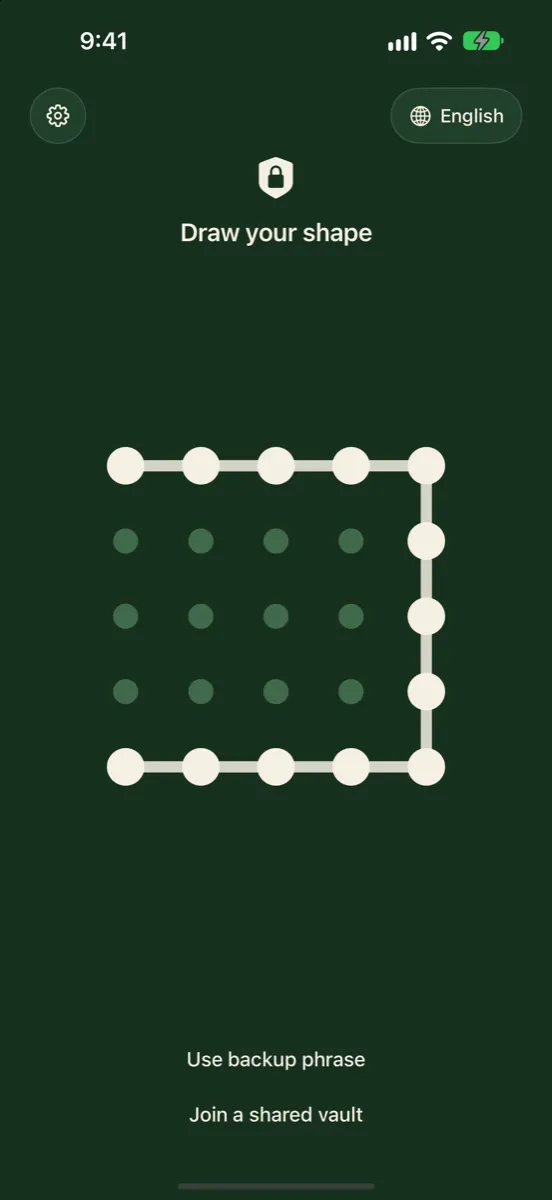
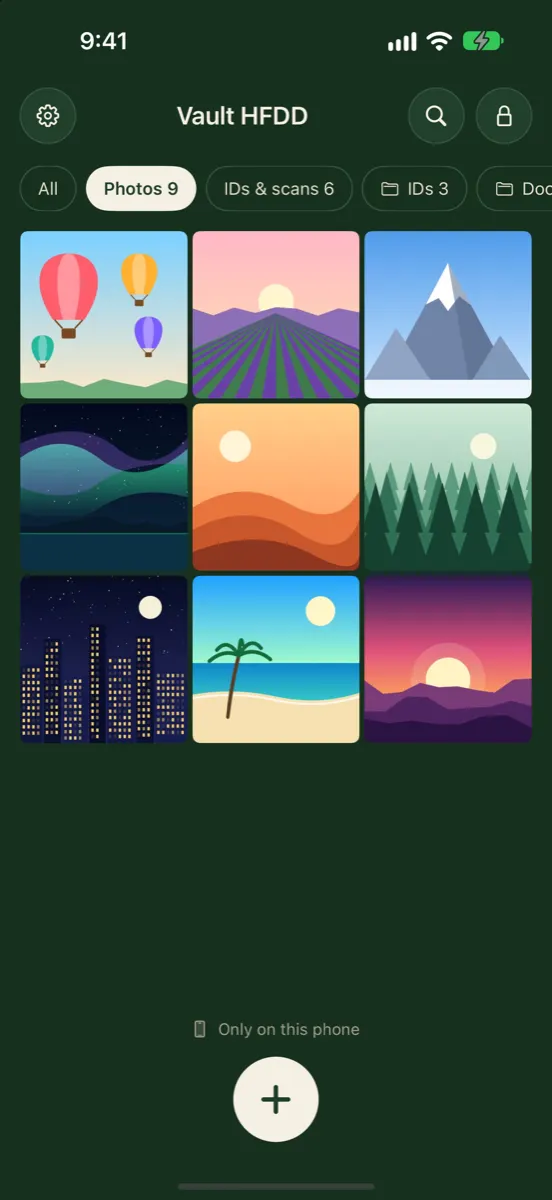
Lock vs Hide vs Encrypt
| What it does | Key | |
|---|---|---|
| Hide | Moves a photo out of your Library view | None on its own |
| Lock | Asks for proof before showing it | Usually Face ID, Touch ID or passcode |
| Encrypt with your own key | Makes the file unreadable without that key | A key separate from your passcode |
Your iPhone already encrypts its storage, and that protects you well if the phone is lost and locked. The question this guide answers is different: what happens when the phone is unlocked, in the hands of someone who knows how to get in?
Option 1: The Locked Hidden Album
Since iOS 16, the Hidden album is locked by default, and Apple’s current guide says the Recently Deleted collection is locked by default too. Both open with Face ID, Touch ID or your passcode.
- Hide a photo: in Photos, touch and hold it and tap Hide.
- Check the lock is on: go to Settings → Apps → Photos. The Use Face ID (or Touch ID, or Passcode) switch should be on.
- Optional: turn off Show Hidden Album in the same place, so the album does not appear at all.
Who it stops: someone browsing your photos. Who it doesn’t: anyone who knows your passcode, because the passcode opens the album.
Option 2: Lock the Whole App
You can lock an app so it asks for Face ID, Touch ID or your passcode every time it opens. Apple also says information from a locked app stays out of places like notification previews, search and Siri suggestions.
- On the Home Screen, touch and hold the app’s icon until the quick actions menu opens.
- Tap Require Face ID (or Touch ID, or Passcode).
- Tap it again to confirm, and authenticate.
Apple lists a few built-in apps that can’t be locked, including Calculator, Camera, Clock, Contacts, Find My, Maps, Shortcuts and Settings. Photos is not on that list, so you can try locking it the same way. A locked app relocks as soon as you quit it.
Locked and hidden apps are set per device. Apple notes the setting doesn’t sync through iCloud, so lock the app again on your iPad if you use one.
With Stolen Device Protection on, opening a locked app away from familiar places needs Face ID or Touch ID, not just the passcode. That helps if a thief has watched you type your code.
Who it stops: someone you hand your unlocked phone to. Who it doesn’t: anyone who can pass the passcode check, in places where the passcode is accepted.
Option 3: A Locked Note With Its Own Password
The Notes app can lock notes with your iPhone passcode or with a password that is only for Notes. For iCloud accounts, Apple says both options use end-to-end encryption. If people around you know your passcode, choose the separate password.
- Open a note and add the pictures you want to protect.
- Tap the menu button and choose Lock.
- Choose Create Password rather than using your iPhone passcode, and set a hint.
- Delete the originals from Photos and from Recently Deleted.
Two honest notes. Apple cannot recover a forgotten Notes password, so store it carefully. And notes are best for a few items; they are not built for browsing large albums or videos.
Option 4: A Vault With Its Own Key
An encrypted vault app keeps photos outside the Photos library and seals them with a key that has nothing to do with your passcode. In Vaultmira, that key comes from a shape you draw.
- Not your passcode, not Face ID. Only the drawing, or the vault’s backup phrase, opens a vault.
- Locks the moment you leave. When Vaultmira goes to the background it locks, and the app switcher shows a plain cover instead of your photos.
- Quiet drawing. In App Settings you can turn off Show my drawing as I draw, so nobody watching sees the line.
- No screenshots. Screenshots and screen recordings of the app come out black, apart from the backup-phrase page.
- More than one vault. Each drawing opens its own vault, and a shape that isn’t a vault opens an empty one with no error. See Hidden Vaults.
Who it stops: people who know your passcode, people who borrow your phone, and anyone who copies the app’s files without the drawing or phrase. Who it doesn’t: someone who learns your drawing, so draw it privately.
Making Any Lock Stronger
Whatever you choose, a few habits make every lock on your iPhone work harder for you:
- Use a longer passcode. Because so many locks fall back to it, your passcode is the master key to most of your phone. Longer is better than four digits.
- Keep Face ID to yourself. If someone else’s face is enrolled as an alternate appearance, they pass every Face ID prompt too.
- Type and draw privately. Most people who get into a phone simply watched the code being entered. In Vaultmira you can turn off Show my drawing as I draw.
- Turn on Stolen Device Protection. It adds a Face ID or Touch ID requirement for sensitive actions away from familiar places.
- Clean up after moving photos. A lock on the new copy does nothing for the original still in Photos or in Recently Deleted.
- Keep your recovery details safe. A separate Notes password or a vault’s backup phrase is only useful if you can find it when you need it.
Which Lock Should You Choose?
| Your situation | Good fit |
|---|---|
| Friends scroll your camera roll | Hidden album, locked (default) |
| Kids borrow your phone for games | Lock Photos, or move photos to a vault |
| A partner or relative knows your passcode | A vault with its own key |
| IDs, bank or medical papers | A vault with encrypted backup |
| A few text-heavy documents | A locked note with its own password |
Whichever you pick, remember that the lock only covers the copy it holds. Delete the originals from Photos and from Recently Deleted, where deleted items wait for 30 days. For real situations, see Your partner knows your iPhone passcode and Your child plays games on your iPhone.
Frequently Asked Questions
Can I put a password on a single album in Photos?
Not on ordinary albums. The Photos app locks the Hidden and Recently Deleted collections with Face ID, Touch ID or your passcode. For a separate lock on a set of photos, use a locked note with its own password or a vault app.
Does locking the Photos app protect my pictures from someone who knows my passcode?
Usually not. App locks accept your passcode. Stolen Device Protection can require Face ID away from familiar places, but at home the passcode still works. A vault with its own key is the way around that.
Can I open Vaultmira with Face ID?
No. Each vault opens only with its drawing or its backup phrase. That is on purpose: anyone who can unlock your phone could pass Face ID or passcode prompts, but they still can’t open your vault.
What if I forget the drawing for my vault?
Use the vault’s backup phrase from the draw screen, then set a new drawing. Without the drawing or the phrase, nobody can open that vault, including us. Our guide Forgot your photo vault password or drawing? walks through it.
Is a locked note encrypted?
Apple says locked notes in iCloud accounts are protected with end-to-end encryption, whether you use your passcode or a separate Notes password.
Related reading:
Keep it private, for real
Hidden is not the same as locked. Vaultmira seals your photos and files on your iPhone behind a shape only you know.
Download Vaultmira Free