

Calculator Vault Apps: What They Hide and What They Don’t
A calculator that opens a secret vault when you type a code is a clever idea. It is also only half of the story. The disguise protects the door; what protects your photos is whatever sits behind it.
Search the App Store for “calculator vault” and you will find a long row of apps with nearly identical icons. Their promise is simple: someone picks up your phone, opens the calculator, does some sums, and never suspects a thing.
That can be useful. But it is easy to mistake a good disguise for good security. This guide separates the two, using one popular app, Calculator#, as a concrete example from its own App Store listing, and Apple’s own documentation for what iPhone shows about every app you install.
If you want the protection more than the costume: Vaultmira
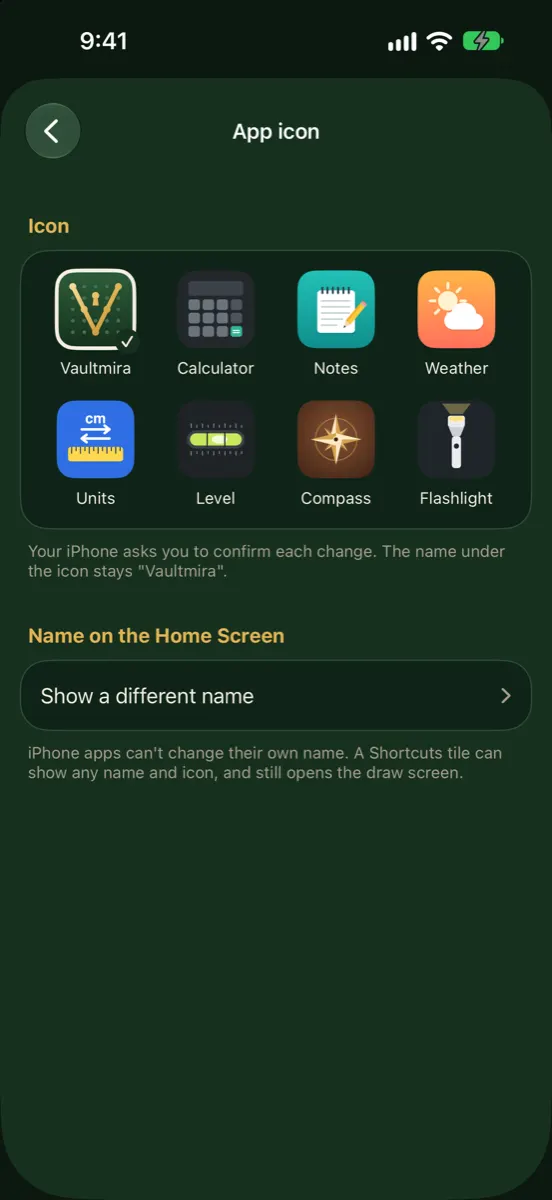
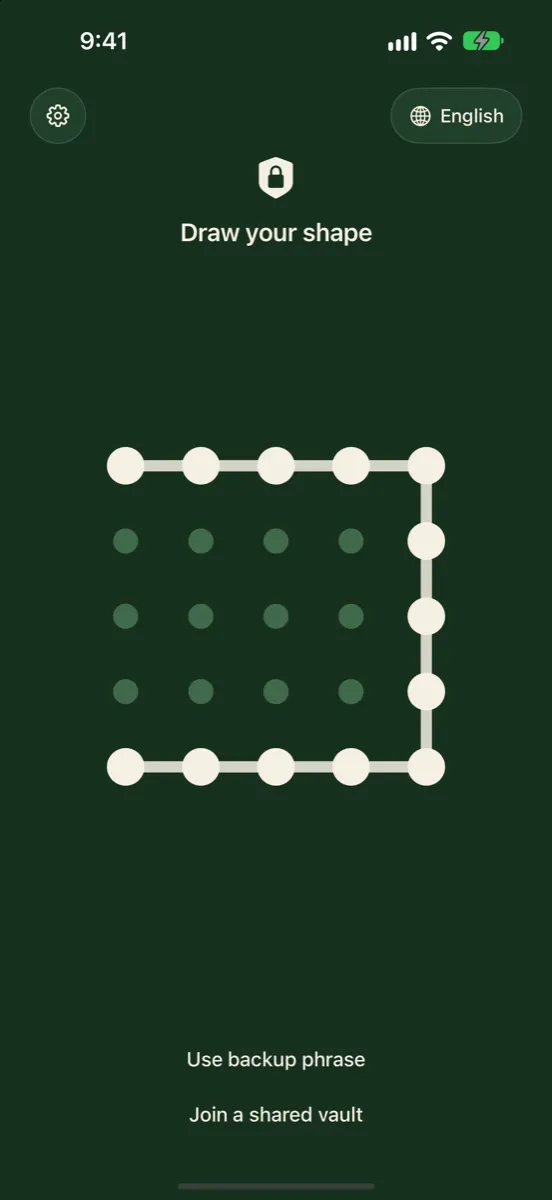
Vaultmira doesn’t pretend to be a calculator. Its strength is behind the door: every file sealed with AES-256-GCM, a key made from a drawing with PBKDF2 at 600,000 rounds, and no list of vaults. For a quieter Home Screen, Vaultmira Pro can wear a Calculator icon, among seven, and it still opens to the drawing grid.
How it looks in Vaultmira
How a Calculator Vault Works
- You install the app. Its icon looks like a calculator.
- You set a secret code, usually a number.
- When opened, the app shows a working calculator.
- Typing your code, often followed by a key like =, opens the hidden gallery instead of showing a result.
Many calculator vaults add more tricks. The listing for Calculator# Hide Photos Videos, for example, mentions a panic switch that jumps to another app, a disguise mode that shows a fake crash message, and a log of wrong-password attempts. It also offers other locks besides the calculator: PIN, pattern, password, and Touch ID or Face ID.
What the Disguise Does Hide
- The icon. A calculator looks unremarkable on any Home Screen.
- The first screen. Someone who opens it sees a calculator that does real sums.
- The purpose, at a glance. Nobody idly scrolling past thinks “that’s where the private photos are.”
Against a child borrowing your phone or a friend looking over your shoulder, that is genuinely helpful.
What the Disguise Doesn’t Hide
iPhone keeps a record of every app you install, whatever its icon looks like. Apple’s own Personal Safety guide lists places where even an app you have hidden can still be seen by name. The same places show a calculator vault:
| Where | What someone can see |
|---|---|
| Settings → Apps | The app’s name in the list of installed apps |
| Settings → Screen Time | That the app is used, and for how long |
| Settings → Battery | The app in battery usage |
| App Store purchase history | That you downloaded it (you can hide purchases from the list) |
| Search | The app, if someone types its name |
| Your Home Screen | A second calculator next to Apple’s own |
The label under an icon is part of the app, and apps can’t rename themselves on the fly. So the name shown is whatever the developer chose. Apple explains how to hide an app from your App Store purchase list, but notes it still remains in your full purchase history.
Every iPhone already has Apple’s Calculator. Someone who knows phones may wonder why you have two. That isn’t a reason to avoid a disguise, just a reason not to rely on it alone.
The Question That Matters: What’s Behind the Keypad?
Once someone knows or suspects there is a vault, the disguise has done its job and the real protection takes over. Ask:
- Are the files encrypted? Look for a stated method. The Calculator# listing describes password protection and many features but doesn’t describe an encryption method; that doesn’t prove there isn’t one, only that the listing doesn’t say.
- How long is the code? A short number is easy to watch someone type and, if files are ever copied off the phone, quick to guess unless the app stretches it into a key.
- How does recovery work? Calculator#’s listing offers lost-password recovery through a registered email. That is convenient; it also makes your email part of your vault’s security.
- Where does the backup go? Calculator# lists iCloud, Dropbox, Google Drive and OneDrive. Ask whether files are encrypted before they upload.
- What does the privacy label say? Calculator#’s lists Contact Info as data that may be used to track you, and the app is free with ads. Check the label on any app you consider.
Our guide Are photo vault apps safe? turns these into eight quick checks.
If Someone Finds It Anyway
Imagine the disguise fails: someone notices the second calculator, or sees you type a code. What happens next depends entirely on the vault.
- If the files are only hidden, anyone who gets past the code, or copies the app’s storage, can view them as normal photos.
- If the files are encrypted with a stretched key, copying the storage gets them nothing readable, and guessing the code takes real time.
- If there is a decoy, a second code can make the app look harmless. Hide it Pro, for example, lists an “escape” code that makes the app look empty; Vaultmira’s version is that every drawing opens its own vault, and a panic drawing (Pro) can erase the others from the device while their sealed iCloud copies are kept.
In other words, the calculator buys you time and quiet. Encryption decides what that time is worth.
Other Ways to Keep a Vault Out of Sight
Hide the app with iOS
iPhone can hide any app you downloaded from the App Store. Touch and hold its icon, tap Require Face ID, then Hide and Require Face ID. The app leaves your Home Screen and moves to a Hidden folder at the bottom of App Library, which needs Face ID, Touch ID or your passcode to open, according to Apple’s guide. It still appears in the places in the table above. Our guide How to hide or lock apps on iPhone has the details.
Change the icon
With Vaultmira Pro, Disguise Icons lets the app wear one of seven everyday looks: Calculator, Notes, Weather, Units, Level, Compass or Flashlight. We are upfront about what this is: a different picture. The name under it still reads Vaultmira, tapping it opens the drawing grid rather than a fake calculator, and the app still shows in Settings and App Library. Vaultmira can walk you through making a Shortcuts tile with any name you like.
Make the vault itself unremarkable
In Vaultmira, a shape that isn’t one of your vaults simply opens an empty vault, with no error. The app never shows a list or count of vaults. So even someone who opens the app, or watches you open one vault, can’t see what else exists. See Hidden Vaults and Plausible Deniability.
Calculator Vault or Encrypted Vault?
| Typical calculator vault | Vaultmira | |
|---|---|---|
| Looks like | A working calculator | Vaultmira, or one of seven icons with Pro |
| Opens with | A code typed on the keypad (other locks often offered) | A drawing on a 5×5 grid |
| Encryption | Varies; check the listing | AES-256-GCM per file, PBKDF2 key |
| Forgot code | Often email recovery | Backup phrase; no email |
| Account | Varies | None |
There is no wrong choice here, only a wrong expectation. If you like a calculator front, pick one whose maker also explains its encryption. If you care more about what happens once someone is past the front, put the encryption first. Our page Vaultmira vs Calculator# compares the two in detail.
Frequently Asked Questions
Are calculator vault apps safe?
The calculator part is a disguise, and it works for casual glances. Safety depends on what is behind it: whether files are encrypted, how strong the code is, and how recovery and backup work. Check those before trusting any vault.
Can someone find a calculator vault on my iPhone?
Yes, if they look. Every installed app appears by name in Settings → Apps, and apps also show in Screen Time, battery usage and your App Store purchase history.
Does Vaultmira have a working calculator?
No. Vaultmira Pro offers a Calculator icon among seven disguise icons, but tapping it opens the drawing grid. We chose not to build a fake calculator; protection comes from the drawing and encryption.
Is hiding the app with iOS better than a calculator disguise?
They do different jobs. iOS hiding removes the icon from your Home Screen and puts it behind Face ID in App Library. A calculator disguise leaves an innocent-looking icon in place. Neither hides the app from Settings or Screen Time.
What happens if I forget my calculator vault code?
It depends on the app. Some offer email recovery; others can’t recover anything. In Vaultmira, each vault’s backup phrase brings it back. See Forgot your photo vault password or drawing?
Related reading:
- Forgot Your Vault Password or Drawing?
- How to Hide or Lock Apps on iPhone
- How to Hide Photos on iPad
Keep it private, for real
Hidden is not the same as locked. Vaultmira seals your photos and files on your iPhone behind a shape only you know.
Download Vaultmira Free