

How to Hide or Lock Apps on iPhone, and Where They Still Show
iPhone can now lock apps behind Face ID and tuck them into a hidden folder. It is a real improvement for privacy. It also has edges worth knowing, so you aren’t surprised later.
Not long ago, the only way to keep an app out of sight on iPhone was to bury it in a folder. Now iOS lets you lock an app behind Face ID, Touch ID or your passcode, and hide apps you downloaded in a locked folder in App Library.
This guide covers both, step by step from Apple’s own instructions, then explains exactly where a hidden app can still be seen and how a vault app adds a second layer that iOS can’t.
Best paired with a lock of its own: Vaultmira
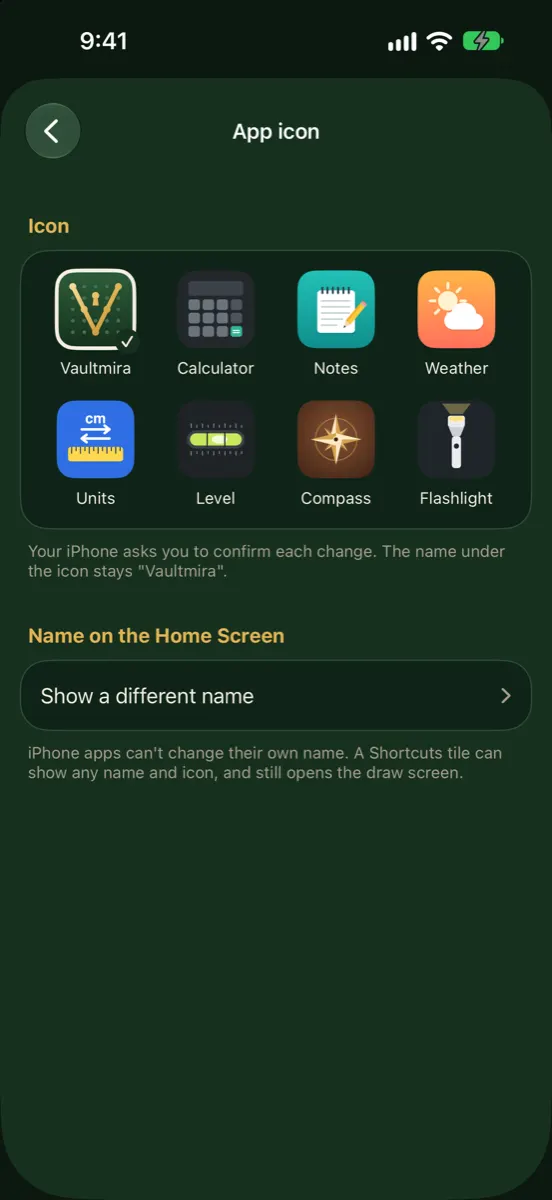
iOS hides and locks the app; it can’t lock what is inside with a different key. Vaultmira can be hidden like any App Store app, and each vault inside still opens only with its own drawing, never your passcode. With Pro, it can also wear one of seven everyday icons.
How it looks in Vaultmira
Locking vs Hiding
| Lock an app | Hide an app | |
|---|---|---|
| Opens with | Face ID, Touch ID or passcode | Same, after opening the Hidden folder |
| Icon on Home Screen | Stays | Removed |
| Where it lives | Wherever you put it | Hidden folder at the bottom of App Library |
| Content in notifications, search, Siri suggestions | Kept out | Kept out |
| Which apps | Most apps; a few built-in ones can’t be locked | Only apps you downloaded from the App Store |
Hiding always includes locking: a hidden app needs Face ID, Touch ID or your passcode to open, just like a locked one.
How to Lock an App
- Go to the Home Screen and find the app.
- Touch and hold its icon until the quick actions menu opens.
- Tap Require Face ID (or Touch ID, or Passcode).
- Tap Require Face ID again, then authenticate.
Opening a locked app doesn’t unlock it for good. Apple notes it locks again after you quit it. While it is locked, information inside it stays out of other places on your iPhone, such as notification previews, search, Siri suggestions, CarPlay and your call history.
Some apps that come with iPhone can’t be locked. Apple lists Calculator, Camera, Clock, Contacts, Find My, Maps, Shortcuts and Settings among them.
How to Hide an App
- Touch and hold the app’s icon until the quick actions menu opens.
- Tap Require Face ID (or Touch ID, or Passcode).
- Tap Hide and Require Face ID, authenticate, then tap Hide App.
The app disappears from your Home Screen and moves to the Hidden folder at the bottom of App Library. Apple says apps that came with iPhone can’t be hidden, only ones you downloaded separately. In the EU, an app set as your default browser or app marketplace can’t be hidden either.
Opening a hidden app
- Swipe left past your last Home Screen page to App Library.
- Tap the Hidden folder at the bottom and authenticate.
- Tap the app and authenticate again.
Stop hiding an app
In the Hidden folder, touch and hold the app, tap Don’t Require Face ID (or Touch ID, or Passcode) and authenticate. It reappears near the top of App Library.
Lost track of what you hid? Go to Settings → Apps → Hidden Apps for the list.
Where a Hidden App Still Shows
Apple’s Personal Safety guide is refreshingly direct about this. Besides the Hidden folder, a hidden app’s name can appear in:
- Settings → Apps → Hidden Apps, after Face ID, Touch ID or passcode.
- Settings → Screen Time.
- Settings → Battery → Battery Health & Charging.
- Your App Store purchase history. You can hide an app from your purchase list, though it remains in your full purchase history.
It’s per device. Locking or hiding an app on your iPhone doesn’t carry over to your iPad. Apple says the setting doesn’t sync with iCloud.
Families see more. Children under 13 in a Family Sharing group can’t lock or hide apps. For ages 13 to 17, a parent can still see the app was downloaded and how long it is used, and can restrict it with Screen Time. (Ages vary by country.)
The passcode still works. Anyone who knows your passcode can open the Hidden folder. With Stolen Device Protection on, Apple requires Face ID or Touch ID to open a locked app when you are away from familiar places.
Other Ways to Keep an App Out of Sight
- Remove it from the Home Screen. The app stays installed in App Library, just not on your pages. No lock, but less visible.
- Put it in a folder of similar-looking utilities, off your first page.
- Change the icon, if the app offers it. Vaultmira Pro has seven disguise icons, from Calculator to Flashlight.
- Use a Shortcuts tile. Apple’s Shortcuts app can add a Home Screen tile with any name and picture that opens an app. Vaultmira’s App icon page walks you through it.
Setting Up Your iPhone Before You Lend It
Handing your phone to a child for a game, or to a friend to look at a map, is where app locks shine. A five-minute setup:
- Lock the apps that hold your life: messages, email, notes and banking. Photos isn’t on Apple’s list of apps that can’t be locked, so try locking it too.
- Hide the apps you’d rather nobody asks about. Only downloaded apps can be hidden.
- Check notifications. Locked apps keep their content out of notification previews, but other apps don’t. Consider showing previews only when unlocked.
- Remember the passcode rule. If the person you’re lending to knows your passcode, they can pass these locks. Keep what truly matters in a vault with its own key.
- Try it once. Hand the phone to yourself, so to speak: open App Library, tap around, and see what someone else would see.
Hiding an App vs Locking What’s Inside
iOS app locks and hides are about the door: who can open the app on this phone. They use your phone’s own unlock. That is perfect for lending your phone to a friend. It doesn’t help if the person you’re worried about knows your passcode.
A vault app with its own key works one layer deeper. Vaultmira, for example:
- Opens each vault only with its own drawing or backup phrase, not your passcode or Face ID.
- Seals every file with AES-256-GCM, so the files are unreadable without that key.
- Never shows a list of vaults; a shape that isn’t a vault opens an empty one.
- Locks as soon as you leave the app, and shows a plain cover in the app switcher.
You can use both: hide Vaultmira with iOS so its icon is gone, and rely on the drawing for what’s inside. Read Calculator vault apps for how disguises compare, and Your child plays games on your iPhone for a real-life setup.
Frequently Asked Questions
Can I hide built-in apps like Photos or Messages?
No. Apple says only apps you download separately from the App Store can be hidden. Many built-in apps can be locked, though a few, such as Calculator, Camera and Settings, can’t.
Where do hidden apps go on iPhone?
To the Hidden folder at the bottom of App Library. Swipe left past your last Home Screen page, tap Hidden and authenticate.
Can someone tell that I have hidden apps?
The Hidden folder itself is visible in App Library, though its contents need Face ID, Touch ID or your passcode. A hidden app’s name can also appear in Screen Time, battery settings and your App Store purchase history.
Do hidden apps stay hidden on my iPad?
No. Apple says locking and hiding apply only to the device where you set them and don’t sync with iCloud. Repeat the steps on your iPad.
Can I hide Vaultmira with iOS?
Yes. Vaultmira is an App Store app, so you can hide it like any other. Its vaults still open only with their own drawings.
Related reading:
Keep it private, for real
Hidden is not the same as locked. Vaultmira seals your photos and files on your iPhone behind a shape only you know.
Download Vaultmira Free