

How to Hide Photos on iPad, Even When the iPad Is Shared
An iPad is often the family device: passed around for homework, games and video calls. That makes hiding photos on it both more important and a little different from a phone. Here’s how to do it well.
Hiding photos on an iPad works almost exactly as on an iPhone, with one layout twist: on the bigger screen, your albums live in a sidebar. The bigger difference is who uses the device. Many iPads are shared by a whole household, and everyone knows the code.
This guide covers the built-in Hidden collection, how iCloud Photos links what you hide on iPhone and iPad, how to lock apps on a shared iPad, and how to keep truly private photos in a vault that only your drawing opens.
Best for a shared family iPad: Vaultmira
On a shared iPad, the passcode is rarely a secret. Vaultmira vaults open only with their own drawing, every file is sealed with AES-256-GCM, and no list of vaults is shown. With Vaultmira Pro, the same drawing opens the same vault on your iPhone and iPad through your private iCloud.
How it looks in Vaultmira
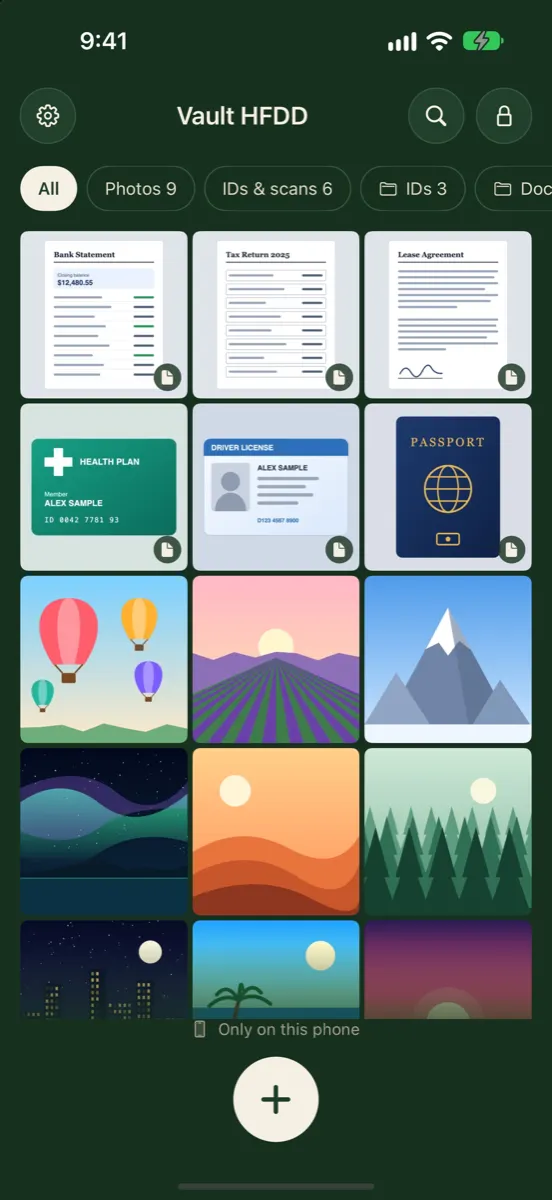
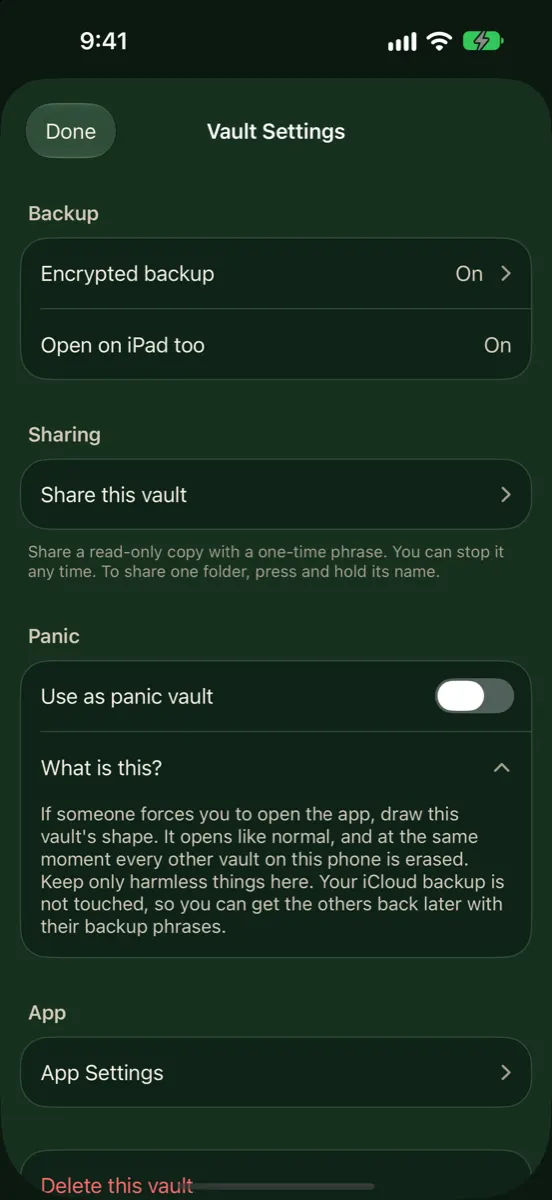
Hide Photos With the Hidden Collection
Apple’s iPad User Guide describes the same tools as on iPhone. Hidden photos move to the Hidden collection and can’t be viewed anywhere else in Photos.
Hide one photo
- Open Photos.
- Touch and hold the photo or video.
- Tap Hide, then confirm.
Hide several
- Open your library or a collection and tap Select.
- Tap the photos and videos you want.
- Tap the menu button, then Hide.
Find them again
On iPad you may need to tap the sidebar icon in the upper-left corner first. Then tap Utilities, then Hidden, then View Album, and unlock with Face ID, Touch ID or your passcode, depending on your iPad.
To remove the Hidden collection from view entirely, go to Settings → Apps → Photos and turn off Show Hidden Album. The Hidden and Recently Deleted collections are locked by default; you can change that in the same settings page.
iPhone and iPad: What Syncs
If you use iCloud Photos, Apple says photos you hide on one device are hidden on your other devices too, and photos you delete are deleted on all of them. So hiding a photo on your iPhone also hides it on your iPad.
If your iCloud Photos library is on a shared iPad, your hidden photos are on that iPad too, behind its passcode. If the whole family knows that passcode, they can open your Hidden collection there. Before you hide anything sensitive, check which Apple Account the iPad’s Photos app uses.
Lock or Hide Apps on iPad
iPad can lock and hide apps the same way iPhone does. Touch and hold an app, tap Require Face ID (or Touch ID, or Passcode), then choose to lock it or Hide and Require Face ID. A hidden app moves to the Hidden folder at the bottom of App Library.
- Per device. Apple says locked or hidden status doesn’t sync with iCloud, so set it on your iPad separately.
- Downloaded apps only. Only apps from the App Store can be hidden.
- Family Sharing limits. Children under 13 can’t lock or hide apps; for teens, parents can still see app downloads and usage through Screen Time.
Our guide How to hide or lock apps on iPhone covers the details, which apply to iPad too.
A Vault That Doesn’t Depend on the iPad Passcode
On a shared iPad, the safest place for private photos is somewhere the household passcode doesn’t reach. Vaultmira runs on iPad as well as iPhone, and every vault opens only with its own drawing.
- Install Vaultmira on the iPad.
- Draw a shape on the 5×5 grid (at least 6 dots and one turn) to make a vault, and save its backup phrase.
- Tap + → From Photos, pick your photos, then tap Remove from Photos.
- Empty those items from Recently Deleted in Photos. If your library syncs through iCloud, that deletion follows to your other devices.
- No list of vaults. Children or relatives who open the app see a drawing grid. A shape that isn’t a vault opens an empty one.
- Locks when you leave. Switch apps or hand the iPad over and the vault locks; the app switcher shows a plain cover.
- Hide the trail. Turn off Show my drawing as I draw in App Settings so nobody sees your shape on the big screen.
- Camera and scanner. Take photos or scan papers straight into the vault on iPad, never saved to the gallery.
One Vault on Your iPhone and iPad
With Vaultmira Pro, draw the same shape on your iPad that you use on your iPhone and the same vault opens, with the same photos, folders and notes. The two devices meet in your own private iCloud, and everything is sealed before it leaves either device. See iPhone + iPad Sync.
- Backup must be on for the vault; it is on by default for new vaults.
- Same Apple Account on both devices, signed in to iCloud.
- Simplest on a fresh install. An iPad that already has its own vaults keeps its own setup, so the same drawing may not lead to the same vault there.
- One device at a time. If you change a vault on both devices before either finishes backing up, the last upload wins. Let one show “Backed up” before you switch.
Sync is for your devices. To give someone else a copy of photos, use Secure Sharing instead, which makes a separate snapshot with its own one-time phrase.
A Quick Checklist for a Family iPad
- Whose Apple Account is it? If it’s yours, your whole iCloud Photos library, hidden items included, can be on it.
- Who knows the passcode? Anyone who does can open the Hidden collection and any locked app.
- Whose faces or fingerprints are enrolled? Each one passes Face ID or Touch ID prompts.
- Which apps are locked? Lock Photos, messages and email if others use the iPad for games or homework.
- Is anything in Recently Deleted? Deleted items wait there for 30 days.
- Where do truly private photos live? In a vault with its own drawing, not in the shared photo library.
None of this needs to feel secretive. Most families simply want a device everyone can use without anyone stumbling on something meant for one person.
Which Option Fits Your iPad?
| Your iPad | Good fit |
|---|---|
| Only you use it | Hidden collection, locked (default) |
| Shared, but others don’t know its passcode | Hidden collection, plus Show Hidden Album off |
| Shared, everyone knows the passcode | Vaultmira vault with its own drawing |
| You want private photos on iPhone and iPad | Vaultmira Pro with iPhone + iPad Sync |
For a deeper look at a household iPad, read Private files on a shared family iPad. For phone-specific steps, see How to hide photos on iPhone.
Frequently Asked Questions
Where is the Hidden album on iPad?
In Photos, tap the sidebar icon in the upper-left corner if the sidebar isn’t showing, then tap Utilities and Hidden. Tap View Album and unlock.
If I hide a photo on my iPhone, is it hidden on my iPad?
Yes, if both use iCloud Photos with the same Apple Account. Apple says hidden photos are hidden on your other devices too.
Can my kids see hidden photos on our family iPad?
If they know the iPad’s passcode, or their face or fingerprint is set up on it, they can open the Hidden collection. Use a vault with its own key for photos they shouldn’t see.
Does Vaultmira work on iPad?
Yes. Vaultmira runs on iPad. Opening the same vault on your iPhone and iPad, kept in step through your private iCloud, is part of Vaultmira Pro.
Can I use a different drawing on my iPad?
Each drawing opens its own vault. To see the same vault as on your iPhone, use the same drawing with Pro sync. A different drawing opens a different vault.
Related reading:
- Are Hidden Photos Saved to iCloud?
- Can Apple See Your Photos?
- Do Hidden Photos Move to a New iPhone?
Keep it private, for real
Hidden is not the same as locked. Vaultmira seals your photos and files on your iPhone behind a shape only you know.
Download Vaultmira Free