
Travel and device access
Handing your iPhone in for repair without handing over your private life
A broken screen or a tired battery means leaving your phone with someone you have never met. A little preparation keeps your private files out of view, and safe even if the phone comes back erased.
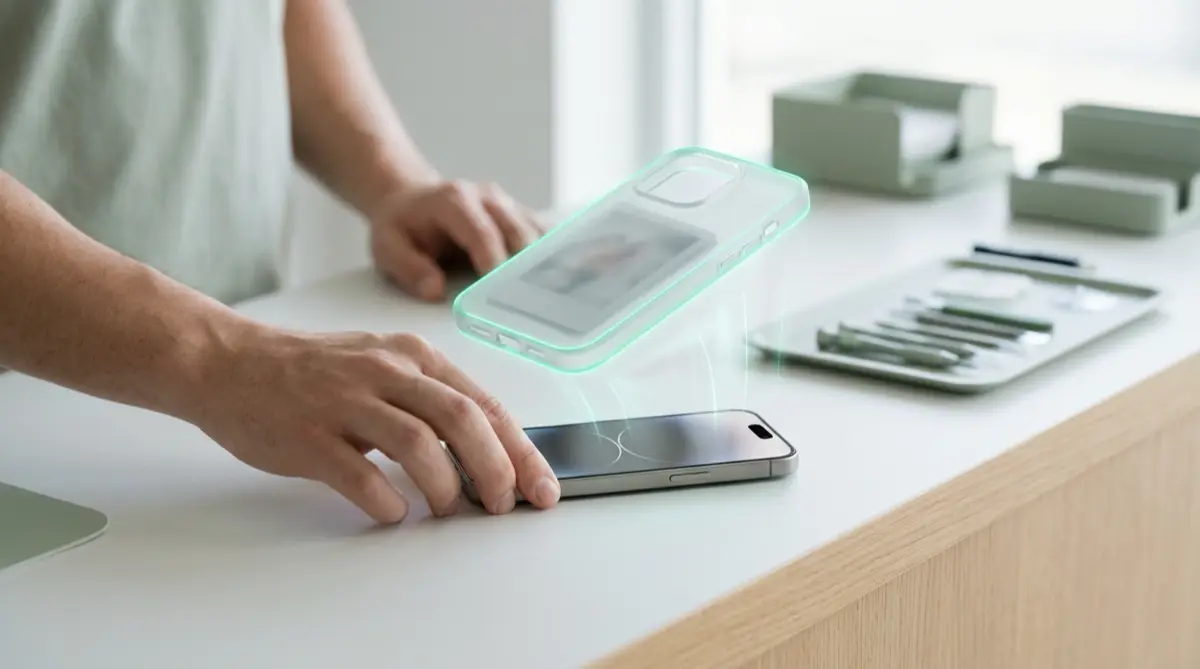
Back up first, then follow Apple’s preparation steps: on iOS 27, turn on Ready for Repair or Trade In in Find My. Apple says it will never ask for your passcode. Keep private photos sealed in a vault that opens only with your drawing, and make sure that vault is backed up, because a repaired phone may come back erased.
Practical answer
What to do now
Back up the phone, wait until iCloud says everything is saved, and check that each vault in Vaultmira shows it is backed up. Then turn on Ready for Repair or Trade In in the Find My app.
What not to rely on
Do not rely on a technician’s good manners or on the Hidden album. If a shop asks for your passcode for testing, anything that opens with the passcode alone is open to them.
What Vaultmira protects
Files in a vault are sealed with a key made from your drawing. Even with the passcode and the phone in hand, a technician sees an app that asks for a drawing, and wrong drawings open empty vaults.
What Vaultmira does not solve
It cannot protect what is still loose in Photos, Mail or chats, and it cannot stop a shop from erasing the phone during the repair. Your backup is what keeps the vault safe from that.
What to remove after import
Before the appointment, move private photos into a vault, let Vaultmira remove the originals, and empty them from Recently Deleted. Remove cards from Wallet, as Apple suggests.
When to ask a professional
Prefer Apple or an Apple Authorized Service Provider when privacy matters. If a third-party shop insists on your passcode, ask why, stay present, or choose another shop.
The problem
Repairs often need the phone to stay overnight or longer. Apple’s own guidance says neither Apple nor its authorized providers will ask for your passcode, but for some software checks you may be asked to type it while you stay present. Independent shops vary, and some ask for the code so they can test the phone afterwards.
On iOS 26 and earlier, preparing for repair meant turning Find My off. iOS 27 adds Ready for Repair or Trade In, which keeps Find My on during an eligible repair and switches itself off when the technician marks the job complete.
The consequences
A phone left with its passcode is a phone anyone at the counter can browse. Private photos, ID scans and medical pictures sit in Photos with nothing extra in front of them.
There is also the opposite risk: Apple warns that a device may come back erased. If a private file lived only on that phone, the repair can cost you the file.
How Vaultmira helps
Vaultmira separates your private files from the phone passcode. A vault opens only with your drawing, so sharing the passcode for a test does not share the vault. Someone trying shapes gets empty vaults and no error, and the app never lists how many vaults exist.
Encrypted iCloud Backup keeps sealed copies of each vault in your own iCloud. If the phone comes back erased, install Vaultmira, draw the same shape, and the vault returns.
Screenshots and screen recordings of Vaultmira come out black, apart from the backup-phrase page, so a quick screen capture during “testing” shows nothing useful.
Setup checklist
- Back up the iPhone and wait for iCloud to finish saving.
- In Vaultmira, open each vault’s Backup page and tap Back up now; wait for it to finish.
- Know your drawing and keep your backup phrase written down at home.
- Move private photos into a vault and remove the loose originals from Photos and Recently Deleted.
- Remove cards from Wallet and, on iOS 27, turn on Ready for Repair or Trade In in Find My.
- If you must share the passcode, stay present while it is used.
- When the phone returns, check it opens normally; if it was erased, restore it and draw each vault’s shape.
Questions this page answers
If you searched for any of these, this page is for you.
| Intent | Question |
|---|---|
| Protect | hide photos before iPhone repair |
| Decide | should I give my passcode to a repair shop |
| Act | how to prepare iPhone for repair |
| Understand | Ready for Repair iOS 27 Find My |
| Recover | iPhone erased during repair photos |
What this is based on
This page combines how Vaultmira works (checked against the app itself) with the public sources below.
- Apple Support: Prepare your iPhone or iPad for a service appointmentApple’s steps, and its promise not to ask for passcodes
- Apple Support: How to use Ready for Repair or Trade IniOS 27 keeps Find My on during repair
Frequently asked questions
Should I delete Vaultmira before a repair?
There is no need if your vaults are backed up. The files on the phone are sealed and open only with your drawing. Deleting the app also deletes any vault that was not backed up.
What if the repair shop erases my iPhone?
Restore the phone, install Vaultmira, stay signed in to the same Apple Account and draw each vault’s shape. Backed-up vaults come down from your iCloud. You can also type your backup phrase.
Can the technician tell I have hidden vaults?
Vaultmira shows no list or count of vaults, and a wrong drawing opens an empty vault without an error. They can see the app is installed, unless you use a disguise icon (Pro).
Protect the files that carry context
Start with the files that would hurt most in the wrong hands. Draw a shape, move them in, and they are sealed on your iPhone.
Download Vaultmira Free