
Travel and device access
Moving your private files to a new iPhone, one vault at a time
A new iPhone should feel exciting, not nerve-racking. Here is how to make sure every private file arrives sealed, and nothing is left behind on the old phone.
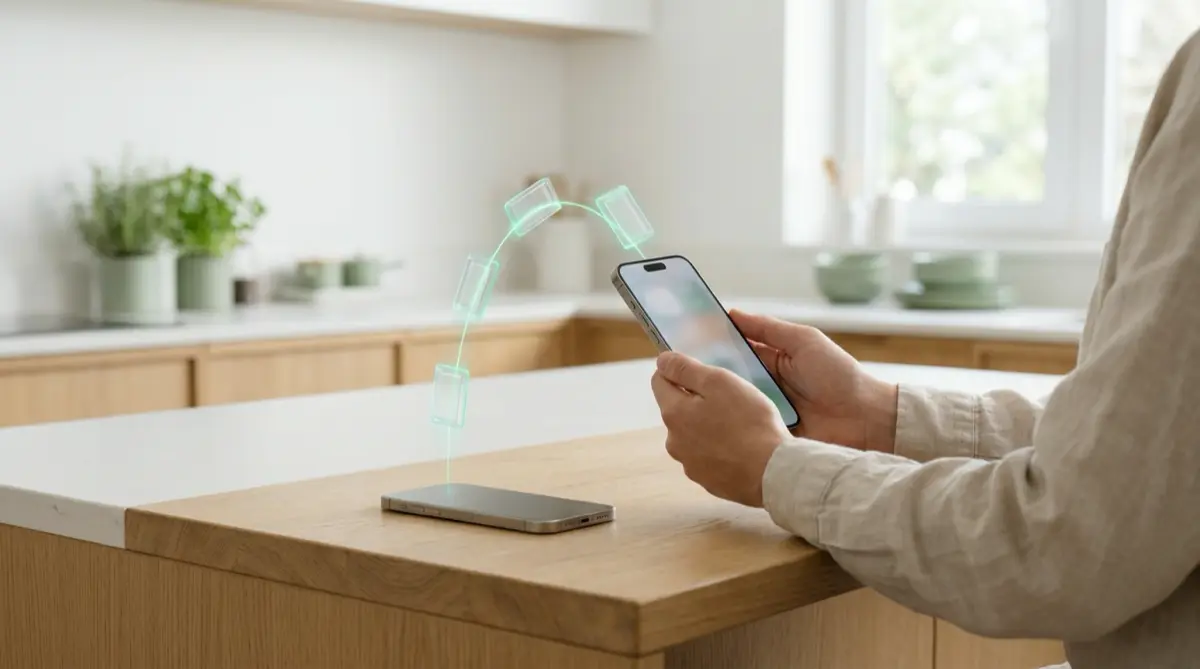
Before you switch, make sure each vault shows it is backed up to iCloud. On the new iPhone, sign in to the same Apple Account, install Vaultmira and draw each vault’s shape; the sealed files come down from your iCloud. Only erase the old phone once every vault opens on the new one.
Practical answer
What to do now
Open each vault on your old iPhone, go to Vault Settings, then Backup, and check it is on. Tap Back up now and wait until it finishes. Do this on Wi-Fi, since backups use Wi-Fi by default.
What not to rely on
Do not assume a phone-to-phone transfer carries every vault across in a working state. Vaultmira’s supported route is its own encrypted iCloud backup, which we test on real setups.
What Vaultmira protects
Files are sealed on the old phone before upload and stay sealed in your private iCloud. Only your drawing or backup phrase can open them on the new phone. There is no Vaultmira account to sign in to.
What Vaultmira does not solve
The app never lists your vaults, on purpose. That also means it cannot remind you which vaults you made. If you forget a drawing, you need that vault’s backup phrase.
What to remove after import
When every vault opens on the new iPhone, erase the old one with Erase All Content and Settings. Also check the new phone’s Photos for private pictures that came back from iCloud Photos.
When to ask a professional
If the transfer itself fails or your Apple Account sign-in is stuck, Apple Support can help. For anything inside Vaultmira, contact [email protected]; we never need your drawing or phrase.
The problem
Apple’s Quick Start makes moving to a new iPhone easy: your settings, apps and data can come across from the old phone or from iCloud. A vault app is a special case, though. Its files are sealed with keys only you hold, so what matters is that the sealed copies and the way to open them both reach the new phone.
Many people also use more than one vault: one for family papers, one for private photos, maybe one to show if pressured. Each one has its own drawing and its own backup switch.
The consequences
The painful mistake is erasing or trading in the old phone before checking the new one. If a vault had backup turned off, its only copy was on that old phone, and once it is erased that vault is gone.
The second mistake is forgetting a drawing you rarely use. Because Vaultmira never shows a list of vaults, a forgotten drawing without a saved phrase means that vault cannot be opened by anyone, us included.
How Vaultmira helps
Encrypted iCloud Backup is free and on by default. Each vault uploads files already sealed with AES-256-GCM to your own private iCloud, keeping up to three versions by default (you can choose 1, 3, 5 or 10).
On the new iPhone, open Vaultmira and draw a vault’s shape. The app finds the sealed copy in your iCloud and brings it down. Repeat for each drawing. If a drawing slips your mind, tap “Use backup phrase” on the draw screen and type that vault’s backup phrase; then choose a new drawing.
If you also use an iPad, iPhone and iPad sync (Pro) keeps opening the same vault there with the same drawing, so it can serve as a second way to check everything arrived.
Setup checklist
- Write down every vault you use, as a hint only you understand, and where each backup phrase is kept.
- In each vault, open Vault Settings, then Backup: make sure it is on, tap Back up now and wait.
- Move your data from the old iPhone to the new one with Quick Start or iCloud, as Apple describes.
- On the new iPhone, sign in to the same Apple Account and open Vaultmira.
- Draw each vault’s shape and check the files open; use the backup phrase for any you cannot recall.
- Only then erase the old phone (Settings, General, Transfer or Reset iPhone, Erase All Content and Settings).
Questions this page answers
If you searched for any of these, this page is for you.
| Intent | Question |
|---|---|
| Act | move vault app photos to new iPhone |
| Understand | do hidden photos transfer to new iPhone |
| Recover | forgot vault drawing after switching phones |
| Protect | is it safe to erase my old iPhone |
| Compare | Quick Start vs iCloud backup for private photos |
What this is based on
This page combines how Vaultmira works (checked against the app itself) with the public sources below.
- Apple Support: Use Quick Start to transfer data to a new iPhone or iPadApple’s own ways to move to a new iPhone
- Apple Support: What to do before you sell, give away, or trade in your iPhoneErasing the old phone properly afterwards
Frequently asked questions
Do I need Pro to move my vaults to a new iPhone?
No. Encrypted iCloud Backup is part of the free plan, and restoring on a new iPhone is free too. Pro is needed only to open the same vault on an iPad.
Why doesn’t Vaultmira just show me all my vaults on the new phone?
A list would tell anyone holding your phone how many vaults exist. Each vault stays invisible until its own drawing or phrase is used. See hidden vaults.
What if I switch to a different Apple Account?
Backups live in the iCloud of the Apple Account that made them. Keep using the same account on the new iPhone, or move the files across before you change accounts.
Protect the files that carry context
Start with the files that would hurt most in the wrong hands. Draw a shape, move them in, and they are sealed on your iPhone.
Download Vaultmira Free