
Everyday boundaries
A stranger saw a private photo on your Lock Screen
You put your phone on the table, the screen lit up, and there it was: a photo you never meant anyone to see. It is a common surprise, and it is easy to stop once you know where these pictures come from.
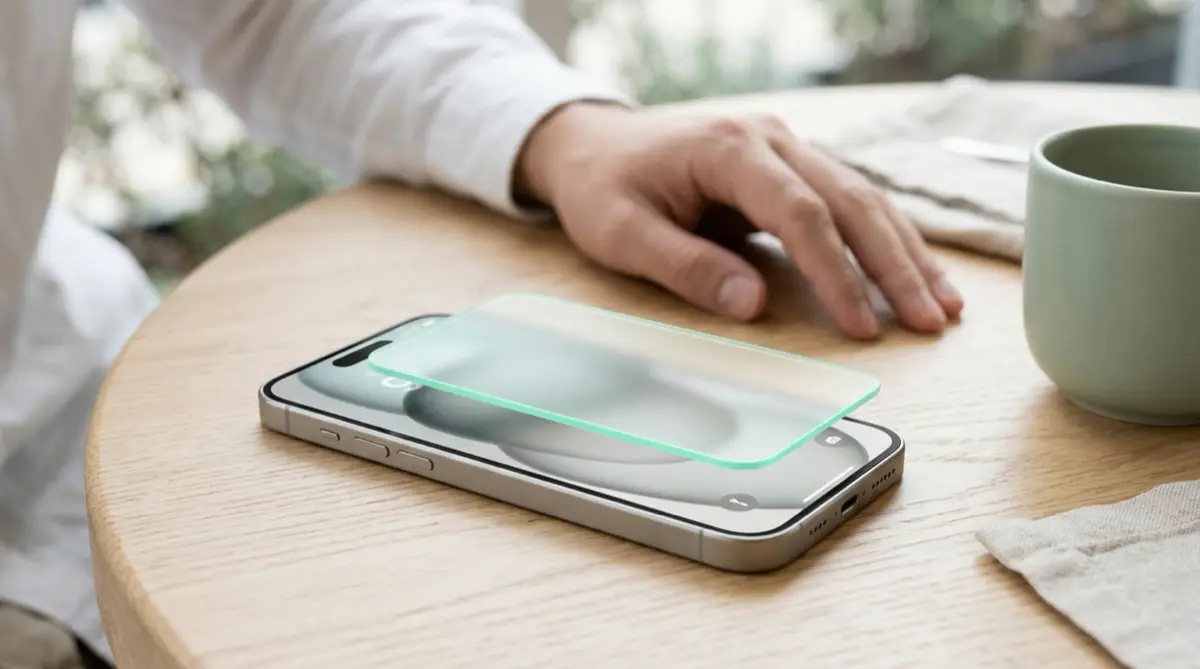
Your iPhone can pick photos for you in several places: a Photo Shuffle Lock Screen wallpaper, the Photos face in StandBy, and the Photos widget on your Home Screen. Change each one to an album you chose yourself, or turn off Show Featured Content in Photos. Photos kept in a Vaultmira vault are not in your photo library at all, so none of these features can ever show them.
Practical answer
What to do now
Long-press your Lock Screen and check whether the wallpaper is a Photo Shuffle. If it is, switch it to one fixed photo or to an album you made for this. Then check StandBy and any Photos widget on your Home Screen.
What not to rely on
Do not count on iOS guessing which photos are private. Featured photos are chosen automatically from your whole library, and a picture you would never pick can still be chosen.
What Vaultmira protects
Files in a vault live inside the app, sealed with a key from your drawing. They are not in Photos, so Photo Shuffle, StandBy, Memories and the Photos widget cannot reach them. Vaultmira adds no widget of its own.
What Vaultmira does not solve
It does not change your wallpaper or widget settings, and it cannot pull back a photo someone already saw. Photos that stay in your library can still be featured until you change those settings.
What to remove after import
After moving a photo into a vault, let Vaultmira remove it from Photos (iOS asks you to confirm), then empty Recently Deleted in Photos so no copy is left behind.
When to ask a professional
Usually never. If the person who saw the photo is now threatening to share it or asking for money, that is a different situation: see our page on sextortion and blackmail evidence.
The problem
Since the Lock Screen became customizable, iPhones can rotate through your pictures on their own. Apple’s wallpaper guide describes Photo Shuffle, which can draw from categories like People, Nature or Cities and change the picture on tap, on lock, hourly or daily. StandBy, the view your iPhone shows while charging on its side, has a Photos face that can shuffle pictures too, and the Photos widget on the Home Screen shows featured photos from your library.
All three are lovely when they show your dog or a sunset. The trouble is that the choice is automatic. A screenshot of a medical result, a photo meant for one person, or a picture of a document can be chosen just like any other, and a Lock Screen is seen by anyone near your phone.
The consequences
Most of the time the result is a moment of embarrassment. But a Lock Screen is the most public part of your phone: it shows on a desk at work, on a café table, or in a friend’s hand when you pass it over to show them something.
Because these features shuffle, you may not even know which photo was shown or for how long. That uncertainty is often what people find most upsetting.
How Vaultmira helps
The settings fix is quick, and you should do it first. But settings change with updates, new wallpapers and new widgets. The steadier answer is to keep truly private pictures out of the photo library altogether, so no feature, now or later, can choose them.
That is what Vaultmira does. Photos and videos you move into a vault, or take with the in-app secure camera, are sealed with a key made from your drawing and stored inside the app. They are not in Photos, so they cannot become a wallpaper, a StandBy picture, a Memory or a widget tile. Vaultmira has no widget and sends no notifications, so it has nothing of its own to show on the Lock Screen either.
If you do want to show someone one picture from a vault, Show one photo (free) opens just that picture with swiping turned off, and Done locks the vault again. And because each vault opens only with its own drawing, a person holding your unlocked phone sees nothing private unless you draw for them.
Setup checklist
- Touch and hold the Lock Screen. If your wallpaper is a Photo Shuffle, change it to one photo or to an album you made just for wallpapers.
- If you use StandBy, open the Photos face and tap Select to choose which photos appear.
- In the Photos app, consider turning off Show Featured Content, which stops featured photos and memories, including in the Photos widget.
- Remove or change any Photos widget on your Home Screen that shows pictures you did not pick.
- Move private photos into a Vaultmira vault and let the app remove them from Photos.
- Open Photos, go to Recently Deleted, and delete them there too.
- For new private photos, use the camera inside Vaultmira so they never touch your library.
Questions this page answers
If you searched for any of these, this page is for you.
| Intent | Question |
|---|---|
| Fix | how to stop iPhone showing random photos on lock screen |
| Fix | turn off featured photos widget iPhone |
| Understand | why did a private photo show up on my lock screen |
| Protect | keep photos out of photo shuffle |
| Protect | hide photos from StandBy mode |
What this is based on
This page combines how Vaultmira works (checked against the app itself) with the public sources below.
- Apple: Change your iPhone wallpaperHow Photo Shuffle chooses photos and how often
- Apple: Hide people, memories, and holidays in Photos on iPhoneTurn off Show Featured Content for Photos and the widget
- Apple: Use StandBy on iPhoneChoose which photos the StandBy Photos face shows
- Apple: Hide photos with the Hidden albumHidden photos stay out of the Library and Photos widget
Frequently asked questions
Would the Hidden album have stopped this?
Apple says hidden photos do not appear in your Library, other albums or the Photos widget, so hiding a picture is a good quick step. The photos still live in your photo library and in iCloud Photos if you use it; a vault keeps them sealed inside the app instead.
Can a Vaultmira photo ever appear on my Lock Screen?
Not through Photo Shuffle, StandBy, Memories or the Photos widget, because vault files are not in your photo library. Vaultmira has no widget and sends no notifications. It would only appear if you saved a copy back to Photos yourself.
Do I have to turn off featured photos completely?
No. You can keep them and simply make sure private pictures are not in your library, or point your wallpaper and StandBy at albums you made yourself. Turning off Show Featured Content is the simplest single switch if you prefer it.
Protect the files that carry context
Start with the files that would hurt most in the wrong hands. Draw a shape, move them in, and they are sealed on your iPhone.
Download Vaultmira Free