
Everyday boundaries
How to Show Someone One Photo Without Them Scrolling Further
You want to show a friend one picture. You hand over the phone, and their thumb is already moving toward the next one. It is a small moment that can feel very big.
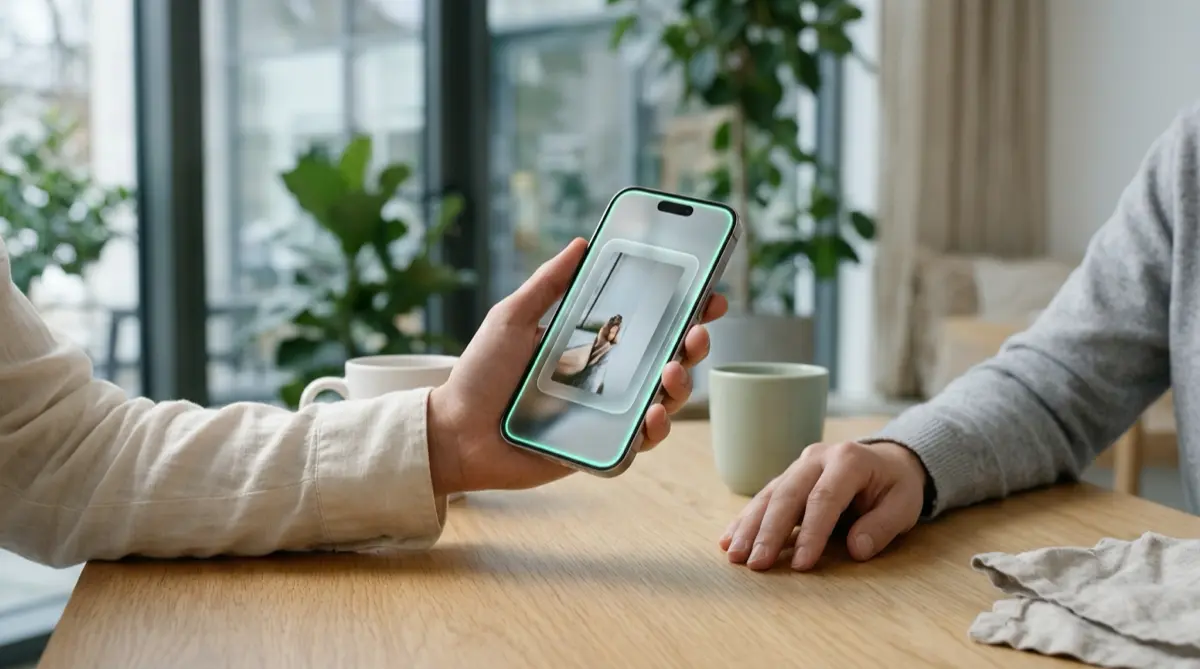
In the Photos app a swipe moves to the next photo, and iOS has no setting to stop that. In Vaultmira, open the photo, tap the ⋯ menu and choose Show one photo. Swiping is off, the buttons disappear, and when they hand the phone back, Done locks the vault so you draw to go back in.
Practical answer
What to do now
Keep the photos you might show in Vaultmira. When you want to share one, open it and choose Show one photo before you hand the phone over.
What not to rely on
Holding the phone tightly or saying “just this one” does not stop a swipe. In Photos, the next picture is always one flick away.
What Vaultmira protects
In Show one photo there is no swiping and no Close, Share or Delete button on screen. The only way out is Done, which locks the vault.
What Vaultmira does not solve
The person can still swipe up to leave the app, or look closely at the photo you chose. Pick the photo with care.
What to remove after import
If the photo came from Photos, tap Remove from Photos after adding it, then empty Recently Deleted, so the original is not still sitting in the gallery.
When to ask a professional
This is an everyday privacy moment, not a security problem. If you need to show photos as evidence, ask a lawyer how they want them shared.
The problem
Photo apps are built for browsing. Open one picture and you are a swipe away from the picture before and the one after. That is great when you are flicking through holiday shots alone, and awkward when someone else is holding your phone.
The next photo might be a medical picture, a screenshot of a bank balance, a private message, or simply something you would rather keep to yourself. iOS offers Guided Access, which can limit the phone to one app, but it does not stop swiping inside that app.
The consequences
Most people who swipe are not snooping. Swiping is a habit. But the result is the same: you lose control of what is seen, and you cannot take it back.
Many people deal with this by never handing their phone over at all, which makes everyday sharing harder than it should be. Others pre-crop, screenshot or send the photo first, which leaves more copies lying around.
How Vaultmira helps
Vaultmira’s Show one photo was made for exactly this moment. Open a photo in your vault, tap the ⋯ button and choose Show one photo. A small banner says swiping is off, the picture fills the screen, and the person can pinch to zoom, but there is no next or previous photo to swipe to.
When they hand the phone back, tap Done · draw to go back. The vault locks right away, so if they reach for the phone again, they land on the draw screen, not in your files. Show one photo is part of the free app.
Because Vaultmira’s viewer never pages from one file to the next, even normal viewing shows one item at a time. To keep things tidy, you could make a separate vault, or a folder, just for photos you are happy to show.
Setup checklist
- Add the photos you often show (or the ones you would never show) to a Vaultmira vault.
- Tap Remove from Photos after adding, and empty Recently Deleted in Photos.
- Open the photo you want to share and tap ⋯ → Show one photo.
- Hand the phone over. They can zoom, but not swipe.
- When you get it back, tap Done · draw to go back, which locks the vault.
- Want even more control? Use Guided Access, so the phone stays inside Vaultmira while it is out of your hands.
Questions this page answers
If you searched for any of these, this page is for you.
| Intent | Question |
|---|---|
| Primary | show one photo on iPhone without swiping |
| Protect | stop someone swiping through my photos |
| Check | can I lock a single photo on iPhone |
| Protect | hand phone to someone to show a picture |
What this is based on
This page combines how Vaultmira works (checked against the app itself) with the public sources below.
- Apple Support: Use Guided Access on iPhone or iPadKeeps the phone in one app; does not stop swiping
- Apple Support: Hide photos with the Hidden albumHow iOS hides photos from the main library
Frequently asked questions
Can I stop swiping in the iPhone Photos app?
Not with a built-in setting. Guided Access can keep the phone inside one app and switch off parts of the screen, but it is not made for limiting someone to one photo.
Is Show one photo a Pro feature?
No. Show one photo is part of the free app.
Does it work for videos?
Show one photo is for photos. Videos and documents open on their own in Vaultmira’s viewer, one file at a time, with no swiping between files.
Protect the files that carry context
Start with the files that would hurt most in the wrong hands. Draw a shape, move them in, and they are sealed on your iPhone.
Download Vaultmira Free