
Everyday boundaries
Your Private Photos Synced to the Family Mac
You took a photo on your iPhone. A few minutes later it was on the big screen in the living room, because the family Mac is signed in to your Apple Account and iCloud Photos does exactly what it promises.
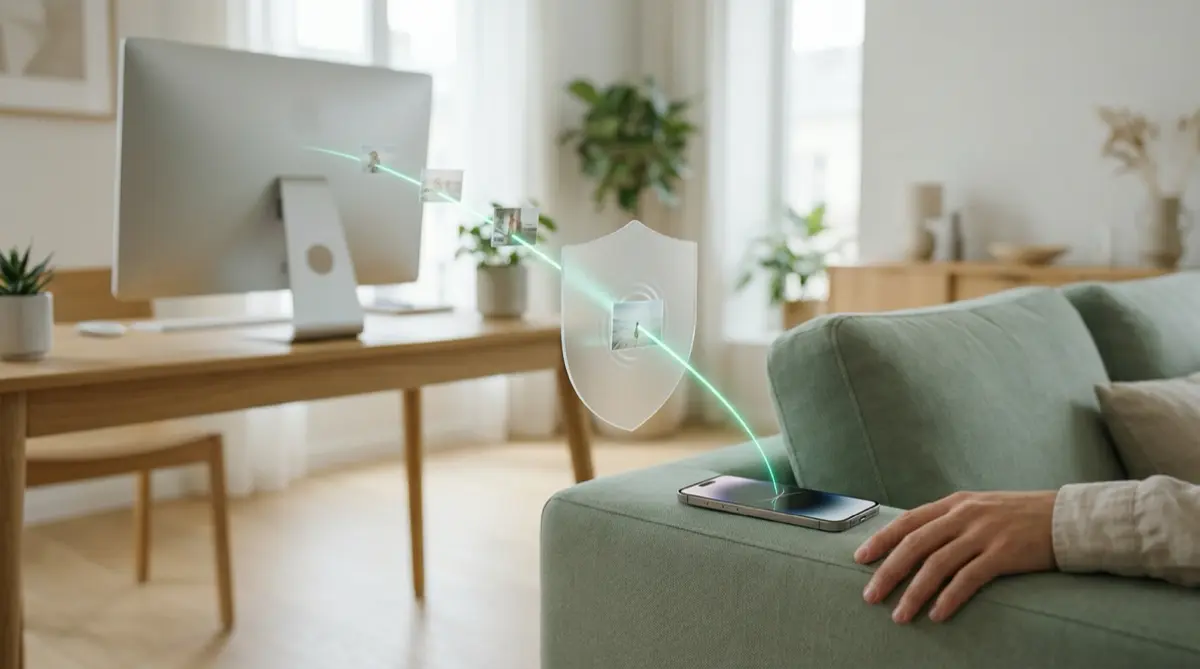
iCloud Photos keeps the same library on every device signed in to your Apple Account with Photos sync turned on, including a shared Mac. Fix it by giving each person their own Mac user account, or turn off iCloud Photos on that Mac. For a handful of truly private photos, keep them out of the Photos library entirely so no sync can carry them.
Practical answer
What to do now
On the Mac, open Photos → Settings → iCloud and see whether iCloud Photos is on for your account. If others use that login, turn it off or move to separate user accounts.
What not to rely on
On a Mac, the Hidden album opens with Touch ID or the login password. If the family shares one login, they share that password too.
What Vaultmira protects
Photos in a vault are not in your Photos library, so iCloud Photos never sends them to the Mac. Vaultmira’s own iCloud backup is sealed before it leaves the phone.
What Vaultmira does not solve
Vaultmira runs on iPhone and iPad. It will not tidy your Mac’s Photos library, remove copies already on it, or manage other people’s Mac logins.
What to remove after import
After moving photos into a vault, tap Remove from Photos, then empty Recently Deleted. With iCloud Photos, deleting on one device deletes on the others too.
When to ask a professional
If you are not the Mac’s administrator, or the account setup is tangled, ask whoever manages the family’s devices, or Apple Support, before deleting anything.
The problem
Families often share one Mac, and it is easy for that Mac to end up signed in to one person’s Apple Account. Apple’s help page for iCloud Photos is clear about the design: turn on sync on each device with the same Apple Account, and your photos and videos stay up to date across all of them. That is lovely for holiday pictures and less lovely for everything else.
The Hidden album syncs too. Apple says that if you use iCloud Photos, photos hidden on one device are hidden on your other devices as well. On a Mac running macOS Ventura or later, the Hidden album unlocks with Touch ID or the login password, so anyone who uses that login can open it.
The consequences
A photo you took on your phone in private can appear in a slideshow, in Memories, or simply in the library when a child opens Photos to find a school picture. Screenshots, medical photos, documents and intimate pictures all travel the same way.
Deleting in a hurry can make it worse. With iCloud Photos, deleting a photo on the Mac deletes it on your iPhone too, and it then sits in Recently Deleted for 30 days. Move what you want to keep first, then delete.
How Vaultmira helps
Vaultmira keeps your most private photos out of the Photos library, so no iCloud Photos setting can sync them anywhere. Import them into a vault, let Vaultmira remove the originals from Photos, and they stop appearing on the family Mac once the deletion syncs.
Inside the vault, every photo, preview and the file list are sealed on the phone with AES-256-GCM, using a key made from a shape you draw. Free Encrypted iCloud Backup stores already-sealed files in your own private iCloud, which the Mac’s Photos app does not show and cannot open without your drawing.
If you would like the same vault on an iPad, Vaultmira Pro lets the same drawing open the same vault on your iPad through iCloud. Your private photos stay where only your drawing reaches them, on the devices you choose.
Setup checklist
- Find out which Apple Account the family Mac uses, and whether iCloud Photos is on in Photos → Settings → iCloud.
- Ask the Mac’s administrator to add a separate user account for each person.
- If the Mac must stay on your account, turn off iCloud Photos there and choose Remove from Mac.
- Move your private photos into Vaultmira and leave Remove from Photos on.
- Empty Recently Deleted in Photos so the originals are really gone.
- Check that Vaultmira’s Encrypted iCloud Backup shows your vault as backed up.
Questions this page answers
If you searched for any of these, this page is for you.
| Intent | Question |
|---|---|
| Primary | stop iPhone photos syncing to family Mac |
| Check | can someone see my hidden photos on Mac |
| Fix | turn off iCloud Photos on Mac without deleting |
| Protect | keep photos private on shared computer |
| Check | why are my iPhone photos on my Mac |
What this is based on
This page combines how Vaultmira works (checked against the app itself) with the public sources below.
- Apple Support: Use iCloud Photos on MacTurn off iCloud Photos on one Mac
- Apple Support: Hide photos with the Hidden albumHidden album syncs; Mac unlocks with Touch ID or password
- Apple Support: Add a user or group on MacGive each person their own login
Frequently asked questions
If I turn off iCloud Photos on the Mac, are my photos deleted?
Apple says your library stays in iCloud and on your other devices. When you turn it off on the Mac you choose to download copies to the Mac or remove those not fully downloaded.
Can my family open my Hidden album on the Mac?
If they use your Mac login, yes. Apple says the Hidden album on a Mac unlocks with Touch ID or the login password.
Does Vaultmira’s iCloud backup show up on my Mac?
Not in Photos. Vaultmira is made for iPhone and iPad, and its iCloud backup holds files that are sealed before upload, in your own private iCloud. Only your drawing or backup phrase opens them.
Protect the files that carry context
Start with the files that would hurt most in the wrong hands. Draw a shape, move them in, and they are sealed on your iPhone.
Download Vaultmira Free