
Everyday boundaries
How to Stop Strangers From AirDropping Things to Your iPhone
A preview pops up on a train or in a café, from a phone name you do not know. It might be a joke, an advert or something you really did not want to see. The fix takes a few seconds.
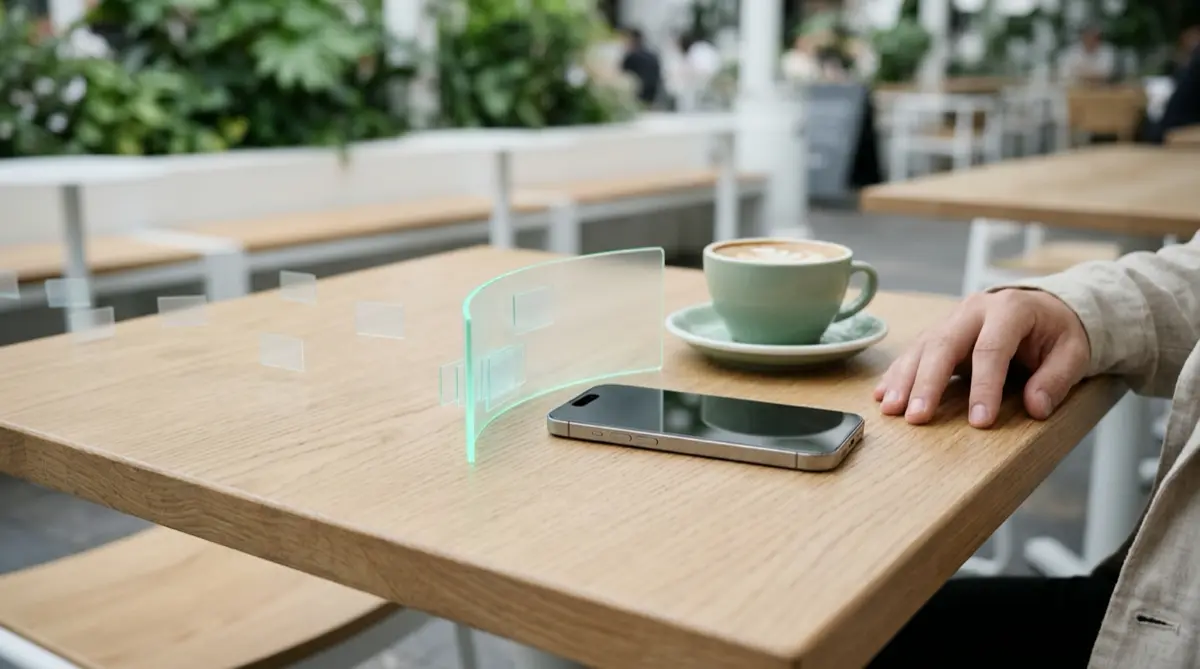
Set AirDrop to Contacts Only or Receiving Off so strangers cannot send you anything. Apple’s Everyone for 10 Minutes option switches itself back after ten minutes. To blur unwanted nude images before you see them, turn on Sensitive Content Warning in Privacy & Security.
Practical answer
What to do now
Open Control Center, touch and hold the connectivity controls, tap AirDrop and choose Contacts Only or Receiving Off. Decline anything you did not expect.
What not to rely on
Ignoring the prompt is not the same as being unreachable. While AirDrop accepts everyone, any nearby stranger can keep sending requests.
What Vaultmira protects
Vaultmira does not change AirDrop. It keeps your own private photos sealed behind a drawing, and lets you store anything you decide to keep as a record outside the Photos library.
What Vaultmira does not solve
It cannot block senders, report them, or stop a preview appearing. Those are AirDrop and iOS settings, covered below.
What to remove after import
If you accepted something by mistake and want to keep it as a record, move it into a vault, tap Remove from Photos, then empty Recently Deleted.
When to ask a professional
If the same person keeps targeting you, or you feel followed, tell staff nearby, and contact local police if you feel in danger.
The problem
AirDrop is brilliant for sending photos to a friend across the table. But when it is set to receive from everyone, anyone nearby with an Apple device can see your phone’s name and send you a request. On busy trains, at concerts and in airports, some people use that to push unwanted pictures, including explicit ones, onto strangers’ screens.
Apple has made this harder over the years. Its support page explains that the Everyone for 10 Minutes setting reverts after ten minutes: to Contacts Only if you are signed in to your Apple Account, or to Receiving Off if you are not. Even so, ten minutes of Everyone at a party or a group photo swap is plenty of time for unwanted requests to arrive.
The consequences
An unwanted image is upsetting, and it is not your fault. A preview can also show up while you are holding your phone at work or in front of a child. Your phone’s name may also give a stranger your first name or more, because AirDrop shows it to nearby devices.
If you tap Accept by accident, the file lands in your Photos library like any other picture. From there it can turn up in Memories, in widgets or when someone else scrolls your camera roll, which is the last place you want it.
How Vaultmira helps
Vaultmira is not an AirDrop blocker, and we would rather say that plainly. Its job is the other half of the problem: keeping your own private photos out of the places strangers and nosy friends can reach. Files you add are sealed on the phone with AES-256-GCM, using a key made from a shape you draw. The vault never opens with Face ID or the iPhone passcode.
If someone is harassing you and you want to keep what they sent as a record, you can move it into a vault rather than leave it in Photos. Import it, let Vaultmira remove the original from Photos, and it is out of your camera roll, your Memories and your widgets.
When you do want to send something private, Vaultmira lets you share one file at a time with Share a copy, or (with Vaultmira Pro) share a vault or folder with a one-time phrase, so nobody nearby can catch it by accident.
Setup checklist
- Set AirDrop to Contacts Only or Receiving Off from Control Center or Settings → General → AirDrop.
- Only use Everyone for 10 Minutes when you need it, and let it switch back on its own.
- Turn on Sensitive Content Warning in Settings → Privacy & Security so unexpected nude images are blurred.
- Rename your iPhone (Settings → General → About → Name) so it does not show your full name to strangers.
- Decline any AirDrop request you were not expecting, without opening it.
- Move private photos of your own into Vaultmira and remove them from Photos, so a stray tap never puts them on show.
Questions this page answers
If you searched for any of these, this page is for you.
| Intent | Question |
|---|---|
| Primary | how to stop strangers airdropping me |
| Fix | turn off airdrop from everyone iPhone |
| Check | can strangers see my name on airdrop |
| Protect | block unwanted nude photos on iPhone |
| Check | what happens if I accept an airdrop by accident |
What this is based on
This page combines how Vaultmira works (checked against the app itself) with the public sources below.
- Apple Support: How to use AirDrop on iPhone and iPadEveryone for 10 Minutes reverts automatically
- Apple Support: About Sensitive Content WarningBlurs nude images received through AirDrop and Messages
- Apple Support: Change the name of your iPhoneYour iPhone’s name is shown in AirDrop
Frequently asked questions
Can a stranger AirDrop me if I set it to Contacts Only?
Only people saved in your contacts can find you to send something. Strangers will not see your phone as a destination.
Why does AirDrop keep switching off Everyone?
That is on purpose. Apple says Everyone for 10 Minutes reverts after ten minutes, to Contacts Only when you are signed in to your Apple Account or Receiving Off when you are not.
Does Vaultmira block AirDrop?
No. AirDrop is controlled by iOS settings. Vaultmira keeps your own private files sealed behind a drawing and out of the Photos library. See our AirDrop privacy guide for more.
Protect the files that carry context
Start with the files that would hurt most in the wrong hands. Draw a shape, move them in, and they are sealed on your iPhone.
Download Vaultmira Free